
These release notes highlight the key updates and changes included in this release. While we do our best to capture everything, some items may be added or adjusted as the rollout progresses. For the most up-to-date information, please reach out to your account team.
Accessibility & Usability Enhancements 5
MetaWhatsApp Channel Extension 11
Park & Retrieve for Email and MetaWhatsApp 14
Silent Monitoring for Chat, Email and MetaWhatsApp 16
Progressive Dialing for Preview Dialer 20
Real-Time Priority and Competency Visibility 21
Cross Contact Center Monitoring 23
MFA Exemptions for Owned Users 25
Verint Enterprise Workforce Management (WFM) Integration 27
Agent Experience Click to Dial for Chromium-Based Browsers 28
Hold Visibility and Tracking 41
Scheduled Follow-Up Discard Confirmation 42
Improved Email Discard and End Confirmations 43
Recents - Conversation History and Enhanced Email Handling 45
Shared Reports in Statistics 47
Outbound Caller ID Description 53
Notifications, Counters and App Icon Badges 54
Improved Do Not Contact Call Alerts 55
Centralized Security Settings 56
Telephone Number Greeting Visibility 57
AI Assistant - Enhanced Configuration 57
AI Insights - Minimum Talk Time 58
AI Prompts - Testing Workflow 59
Call Delivery Timeout Override 60
Salesforce Navigation-Based Logging 61
Microsoft Dynamics Custom Parameters 62
In-Queue Timeout Actions for Voicemail Queues 63
Preview Dialer Countdown Control 65
Dynamic Messages for Agentless Voice Campaigns 65
Evaluation Form Testing and Deletion 67
Embedded Cross Center Services 69
Embedded Cross Center Source 69
Ask AI Interaction Selection 70
Recording Playback & Deletion 70
Enhanced Security for Emailed Report Downloads 71
Time Zone Aware Scheduled Tasks 73
Cross-Center Callback Transfers 74
Scheduled Maintenance for Band Moves 75
Database Provider Integration (aka BYODB) 75
Agent No-Answer Timeout Priority 78
Reset Custom Notification Sounds 78
Improved Character Handling in Call Detail Records 79
New Features
Admin Portal Refresh
A modernized Admin Portal delivers a cleaner, more consistent user experience and provides the foundation for future enhancements.
The Admin Portal has been rebuilt on a modern application framework, providing the opportunity to refresh the user interface while preparing the platform for future development. (14773)
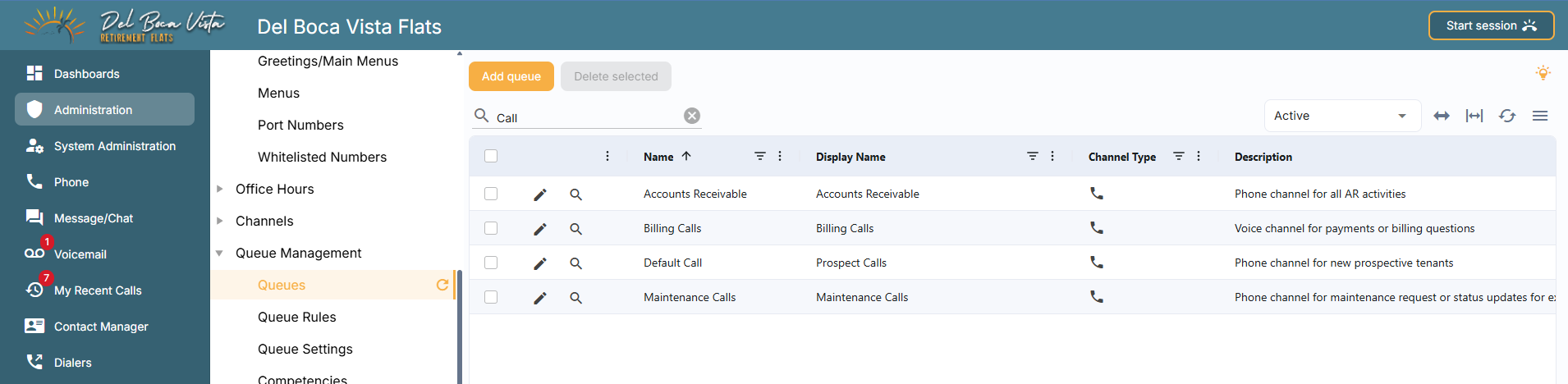
Existing functionality remains familiar, while users will notice a cleaner, more consistent experience across the portal, including updated layouts, controls, and styling. Beyond the visual changes, the modernization provides a stronger technical foundation for faster feature delivery, enhanced usability, improved maintainability, and continued platform evolution.
The Modernized Portal is Now The Default
The modernized Admin Portal is now the default experience for all users, replacing the legacy portal.
Customers are encouraged to test any customizations for compatibility and report issues as early as possible so they can be addressed.
Accessibility & Usability Enhancements
A more accessible and usable experience improves navigation, readability, communication, and everyday workflows across Agent Experience.
Accessibility and usability have been enhanced in the Agent Experience (browser, Progressive Web App (PWA), desktop, and mobile versions) in alignment with the Web Content Accessibility Guidelines (WCAG 2.2 AA). (17031)
These improvements provide better support for keyboard navigation, screen readers, accessible email content, color accessibility, display scaling, reduced motion, and accessible communication services, while also making common agent workflows clearer and more resilient.
Keyboard Accessibility
Keyboard navigation and interaction have been improved, allowing users to navigate supported interfaces without relying on a mouse. Standard keyboard controls are supported throughout the interface:
Tab to move focus forward.
Shift+Tab to move focus backward.
Enter or Space to activate buttons.
Space to toggle interactive form controls, such as checkboxes.
Enter to open links.
Arrow keys to navigate between options in selection controls.
Escape to close open popups.
A clearly visible focus indicator makes it easier to identify which element currently has keyboard focus.
In Agent Experience, a new Help option in the navigation menu provides quick access to K nowledge Base, including a complete list of keyboard shortcuts and a glossary of terms.
Additional navigation shortcuts in the Agent Experience allow keyboard and screen reader users to bypass sections of the interface (not displayed for mouse navigation users):
 Skip to Main Content is displayed when a keyboard user first presses Tab after opening a page. Selecting it bypasses the controls in the application header and moves focus directly to the main content of the open page.
Back to Top of History allows users navigating an
 interaction via keyboard to bypass the most recent portion of the interaction history and move directly to the oldest entry in the available history.
 Skip to Interaction Controls allows users who have navigated through the interaction history to bypass the remaining history and return directly to the main interaction controls.
Screen Reader Support and Required Fields
Interactive controls have been reviewed to provide appropriate labels and accessibility information, helping screen readers communicate their purpose, state, and context.
Required fields are now consistently identified with an asterisk (*), making it easier to recognize information that must be completed.
Required fields are also identified programmatically, allowing screen readers to announce them as required when users navigate and complete forms.
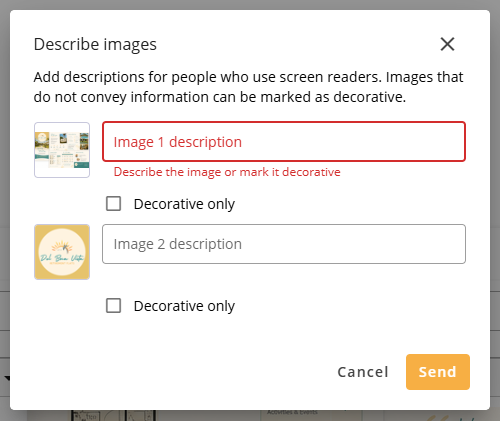 Accessible Inline Email Images
Agents can now provide alternative text for images pasted inline into emails, helping make email content accessible to recipients who use screen readers.
When an email containing one or more pasted inline images is sent, a new Describe images window displays each image and allows the agent to either:
Enter a description of the image for screen reader users
Mark the image as Decorative only when it does not convey meaningful information
For images with a description, the alternative text is included with the email so that recipients using a screen reader can hear the description instead of relying on the visual content of the image.
This only applies to images pasted inline into the email body, not to file attachments.
Clearer Attachment Links
Attachments displayed in interaction history now use the file name as the link text instead of a generic attachment label.
This makes individual attachments easier to identify and provides more meaningful link descriptions for agents using screen readers.
Autofill Support
Standard autofill support has been added to appropriate sign-in and station settings, allowing compatible browsers and password managers to recognize supported input fields. Autofill is support for:
Usernames and saved passwords
Multi-Factor Authentication (MFA) codes
E911 emergency address information
PBX telephone numbers
Autofill is deliberately not enabled for customer contact records, trouble tickets, or Caller ID fields, helping prevent unintended information from being inserted into these fields.
Color and Contrast
Color and contrast have been reviewed to improve visibility and ensure that important information, states, and actions are not communicated through color alone.
One of the most visible changes is the redesigned toast notifications. Toasts previously used a solid green, amber, or red background to indicate their status. They now use a white background with:
A colored vertical border to indicate the notification status
A corresponding status icon displayed within a colored circle
High-contrast text against the white background
Success, warning, and error states continue to use green, amber, and red respectively, but color is no longer the only visual indicator of the notification state.
These changes improve readability and make important interface information easier to distinguish, including for agents with color vision deficiencies.
Display Scaling and Zoom
Improved support for browser font zoom allows text to be increased up to 200% without loss of content or functionality, supporting agents who need larger text to comfortably read and use the interface.
Agents can also use standard keyboard shortcuts to control zoom in supported experiences:
Ctrl + + to zoom in
Ctrl + - to zoom out
Ctrl + 0 to reset the zoom level
These shortcuts are supported in the Agent Experience (browser and PWA), and Desktop Experience.
Reduced Motion
Agent Experience now respects the operating system's reduced-motion preference for call status indicators.
When reduced motion is enabled on the agent's device, animated call status icons are displayed without animation, reducing unnecessary movement while preserving the status information they communicate.
Non-Cycling Content
Information that previously cycled automatically between # in queue and longest wait is now displayed simultaneously.
The two queue metrics are displayed side by side, separated by a bullet point, or across two lines when the available display width is limited. This removes automatically changing content while ensuring both metrics remain continuously visible.
Clearer System Messages
Key system messages and alerts have been revised to use clearer, more straightforward language, making important information and required actions easier to understand.
711 Telecommunications Relay Service Calling
Agents can now dial 711 directly from the Agent Experience to access Telecommunications Relay Services (TRS), helping them communicate with customers who are deaf, hard of hearing, or have speech disabilities.
Previously, 711 could be interpreted as an internal extension. A new system dialing pattern now routes 711 calls through the configured voice carrier, providing access to relay services without requiring administrators to create their own dialing pattern.
The new dialing pattern is applied automatically. Existing contact center dialing patterns continue to take precedence, preserving any custom dialing behavior already configured.
Mobile Experience Landscape Mode
Mobile Experience now supports landscape orientation on both iOS and Android devices, giving users greater flexibility to use the app in their preferred screen orientation.
Together, these enhancements improve accessibility and usability in the Agent Experience, supporting a wider range of users, devices, and working preferences.
A comprehensive list of accessibility compliance changes can be supplied on request.
X Channel Integration
Manage private and public customer conversations on X directly from Agent Experience.
A native integration with X brings social interactions into Agent Experience, allowing agents to handle both direct messages and public conversations alongside other customer channels. (17684)
Public and private interactions remain separate conversations while contributing to the same customer contact history, giving agents context across previous interactions without combining distinct social threads.
Public and Private Conversations
The X integration supports:
Direct messages
Public mentions
Replies
Quotes
Two-way attachments
Agents can respond directly from Agent Experience, with replies sent back through the appropriate X conversation.
Flexible Routing
Public interactions and private direct messages can be routed through separate queues and workflows, allowing contact centers to direct different types of social engagement to the appropriate teams.
Unified Contact History
Direct messages and public interactions from the same customer remain separate conversations but share a common contact history. This gives agents visibility into previous interactions with the customer while preserving the distinction between public and private conversations.
Connection Monitoring and Resilience
Administrators can monitor integration health, webhook status, and API credit balances from the X integration settings. The integration also includes:
Automatic backfill to recover events missed during an interruption
Error information and retry capabilities for failed messages
A demo mode for testing the integration without connecting to live X services
MetaWhatsApp Channel Extension
Connect with customers on WhatsApp directly from Agent Experience, bringing familiar messaging capabilities into your contact center.
The new WhatsApp integration via the MetaWhatsApp Channel Extension allows contact centers to manage customer conversations through WhatsApp alongside their existing communication channels. Agents can exchange messages, share attachments (including audio and video), and respond to customers without switching between applications. (16009)
WhatsApp conversations use existing queue routing and agent workflows, while dedicated service-window controls help contact centers follow Meta's messaging requirements.
Key benefits
Engage with customers through WhatsApp directly from Agent Experience
Follow Meta's 24-hour customer service window requirements
Route WhatsApp conversations to appropriate agents using existing queue, competency, language and priority configuration
Handle multiple messaging interactions
Park conversations while waiting for customer responses, freeing capacity for other interactions
Maintain conversation history when customers return
Support supervisors with live monitoring and private coaching
WhatsApp Account Configuration and Routing
Connect your WhatsApp Business account and map multiple approved telephone phone numbers to different touchpoints, allowing different brands, departments, or services to manage their own WhatsApp conversations across different queues.
Incoming messages are routed through dedicated queues using existing routing capabilities, including agent competencies, capacity, and customer assignments.
24-Hour Customer Service Window
WhatsApp uses a 24-hour customer service window that begins when the customer sends a message. Outside of this window, agents can only send approved templated messages. During the window, agents can respond using free-form or templated messages. When the window expires, agents can only select from templated messages. A new 24-hour service window begins every time the customer replies.
The Agent Experience provides visual indicators showing the status of the service window:
Expired (shown at the top of the conversation and as a banner across it) - Free-form messaging is restricted, and agents must use an approved WhatsApp message template to contact the customer: “This message thread expired MM/DD/YYYY hh:mm am / pm”.
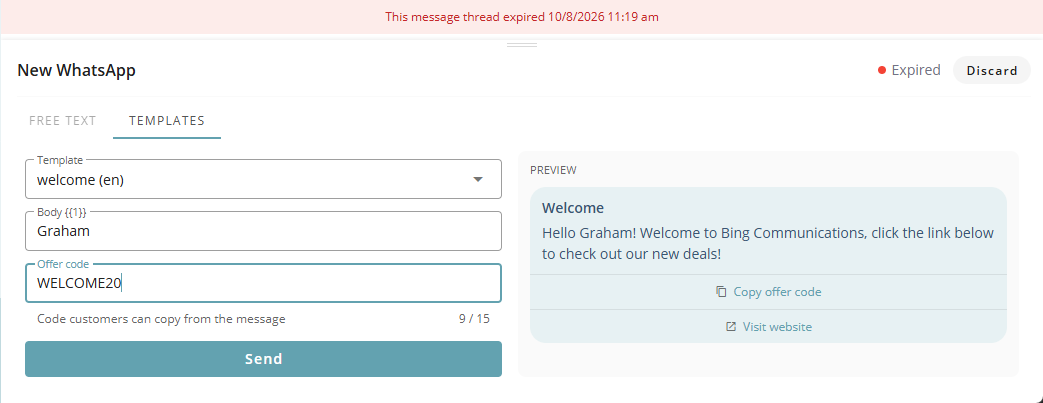
Active (shown at the top of the conversation)- Agents can exchange free text and templated messages with the customer.
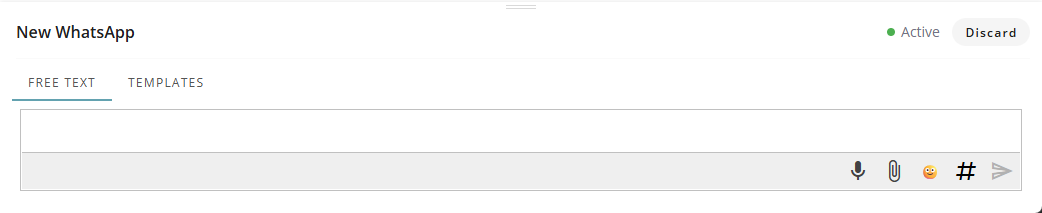
Expiring Soon (shown at the top of the conversation and as a banner across it) - Agents are warned when the service window has 30 minutes remaining: “This message thread is expiring soon. Time remaining: mm:ss”.
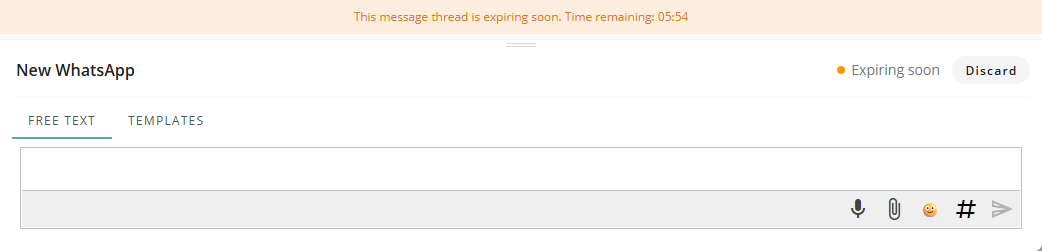
Administrators manage message templates, including their categories and Meta approval status, through the WhatsApp Manager in the Meta Business Suite.
Agent Messaging Experience
WhatsApp conversations are handled within the familiar Agent Experience messaging interface, with support for:
Sending and receiving messages (templated only outside of the 24-hour customer service window, free text or templated during the window)
Exchanging images (5MB limit per file), audio & video files (both capped at 16MB limit per file), and document attachments
Recording and sending audio messages from within the conversation
Viewing message delivery and read statuses (Sent / Delivered / Read / Failed) where available
Retrying of failed messages
All previous conversation history available for customers
Agents can park conversations while waiting for a customer response or additional information. When the customer replies, the conversation can be resumed with its full history available.
Park & Retrieve for Email and MetaWhatsApp
Free up agent capacity by parking MetaWhatsApp and email channel interactions while waiting for customer responses or additional information.
The new Park & Retrieve functionality allows agents to temporarily park active MetaWhatsApp and email interactions and return to later. (16010)
Parking an interaction releases the agent’s concurrency slot, allowing them to handle other waiting contacts. Agents can retrieve their parked interactions when ready, helping them manage asynchronous conversations more efficiently
Key benefits
Free up agent capacity - Park interactions while waiting for customer responses or additional information, allowing agents to handle other queued contacts.
Preserve context - Add private notes when parking an interaction and review the complete conversation history and notes before resuming.
Continue across login sessions - Parked interactions remain assigned to the agent between login sessions, provided the configured parking timeout has not expired.
Automatically requeue expired interactions - Return parked interactions to their original queue when a configured timeout expires.
Prioritize returning interactions - Add the time spent parked, in minutes, to any priority already accrued by the interaction when it returns to the queue.
Control parking and retrieval - Configure parking availability, limits, timeouts, and retrieval behavior through Queue and ACD User Profile settings.
Maintain supervisor oversight - Give supervisors visibility into parked interactions and the ability to requeue them when required via a new Parked Interactions dashboard card
Parking and Resuming Interactions
Agents can park active MetaWhatsApp and email channel interactions when waiting for a customer response or additional information before continuing.
When parking an interaction, agents can add private notes to provide context for when they return to it.
Parking removes the interaction from the agent's active workload and releases its concurrency slot. The interaction remains assigned to the agent, even if they log out and back in, provided the configured parking timeout has not expired.
Agents can only retrieve interactions they have parked themselves. When retrieving a parked interaction, agents can review its conversation history and private notes before choosing to either park it again or retrieve it. Once retrieved, the interaction counts toward the agent's concurrency limit.
Automatic Requeue and Prioritization
Administrators can configure a Parked Interaction Timeout (minutes) through ACD User Profile settings to prevent interactions from remaining parked indefinitely.
When the configured timeout expires, the interaction is automatically returned to the queue from which it was originally delivered.
When requeued, the interaction retains its previously accrued priority, with the time spent parked, in minutes, added to that priority. This helps account for the time the interaction has spent waiting while parked.
Parking Configuration and Supervisor Controls
Administrators can control parking through Queue and ACD User Profile settings.
Queue settings determine whether interactions can be parked for a particular queue.
ACD User Profile settings allow administrators to configure:
The maximum number of interactions an agent can park. Set to 0 to disable parking.
The Parked Interaction Timeout (minutes).
Whether agents can retrieve parked interactions when they have reached their concurrency limit.
Supervisors can monitor parked interactions across queues using the new Parked Interactions dashboard card and manually requeue them when required, including when an agent has logged out. Interactions are requeued to the queue from which they originated.
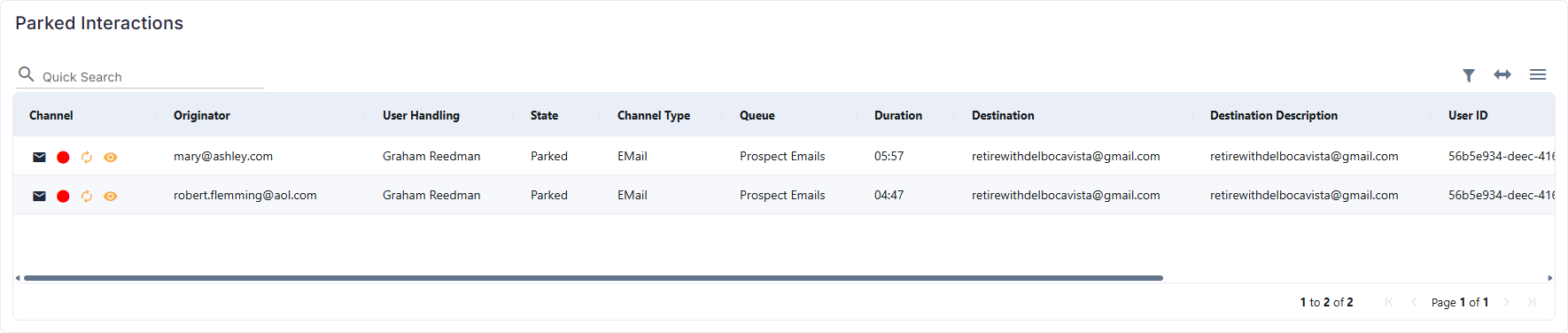
These controls allow contact centers to manage parked workloads while giving agents the flexibility to handle asynchronous conversations without unnecessarily occupying active interaction capacity.
Silent Monitoring for Chat, Email and MetaWhatsApp
Give supervisors visibility into active digital conversations to review service quality, identify coaching opportunities, and spot potential issues before interactions end.
Silent Monitoring is now available for Chat, Email, and MetaWhatsApp interactions, allowing supervisors to review conversations while agents are still handling them, without interrupting the interaction or taking ownership of it. (14835, 16863, 16013)
Supervisors can review customer messages and conversation history directly from the Active Contacts (also known as ACD Interactions) dashboard card, helping them assess service quality, identify coaching opportunities, and recognize interactions that may require additional attention.
Key benefits
 Monitor active conversations - Review Chat, Email, and MetaWhatsApp interactions without waiting for them to end.
Identify issues sooner - Spot potential service issues, coaching opportunities, or conversations that may require escalation.
Avoid disrupting agents - Review conversations without taking ownership of interactions.
Stay up to date - Manually refresh transcripts to retrieve the latest available messages.
Control access - Restrict monitoring to users with the Silent Monitor role, subject to applicable Filter Group restrictions.
Monitoring Active Interactions
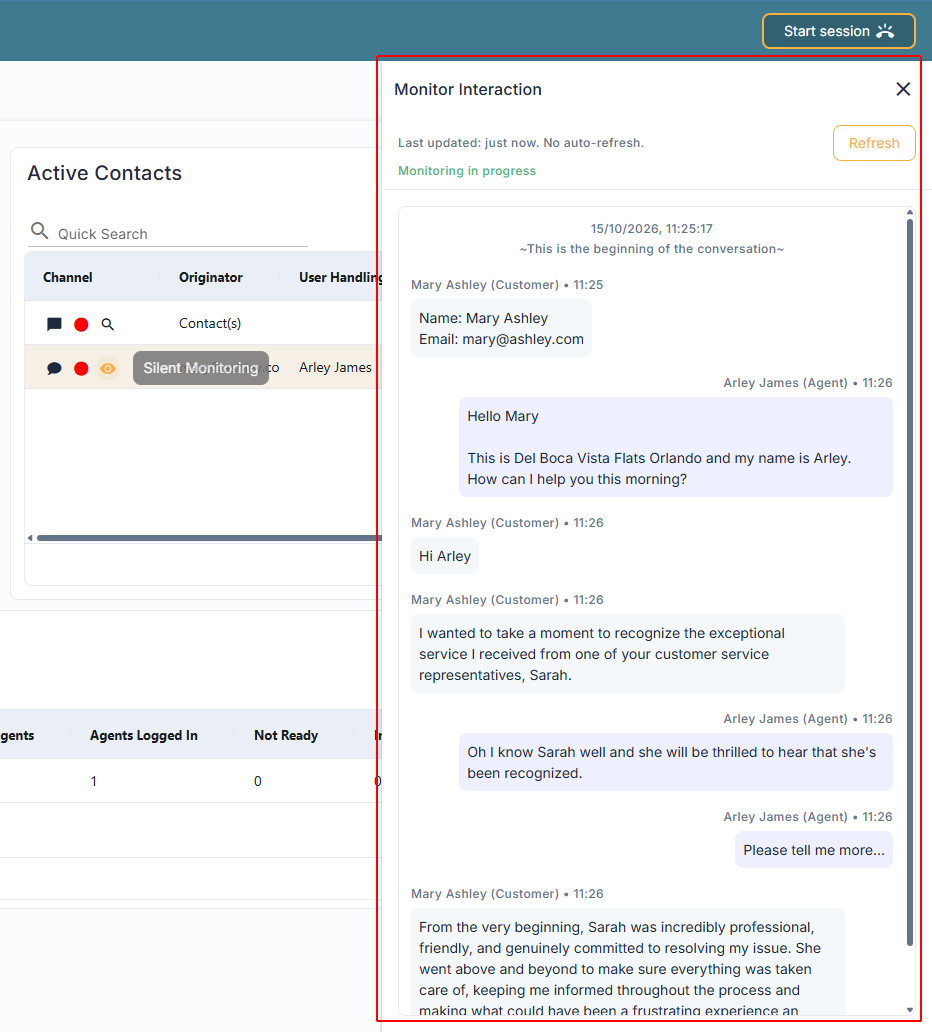
From the Active Contacts dashboard card, supervisors can select  Silent Monitor for an active Chat, Email or MetaWhatsApp interaction.
The conversation opens in a read-only Monitor Interaction panel on the right side of the dashboard, allowing supervisors to review the transcript without navigating away from their current view.
Read-Only Monitoring and Access Controls
Unlike Silent Monitoring for voice calls, Silent Monitoring for Chat, Email and MetaWhatsApp is limited to observation. Supervisors cannot send messages, join conversations, whisper to agents, or take ownership of interactions through the monitoring panel.
Conversations do not update automatically or stream in real time. Supervisors must select Refresh to retrieve the latest available messages. A Last updated timestamp shows when the transcript was last refreshed successfully. If a refresh fails, the last successfully loaded transcript remains visible.
Access is restricted to users with the Silent Monitor role, subject to applicable queue and team restrictions enforced through Filter Groups.
Agent Session Timeline
Review an agent's session as a chronological timeline of states and activity.
The new Agent Session Timeline canned dashboard gives supervisors a single chronological view of agent activity from login through logout, making it easier to understand how time was spent throughout a session. (12742)
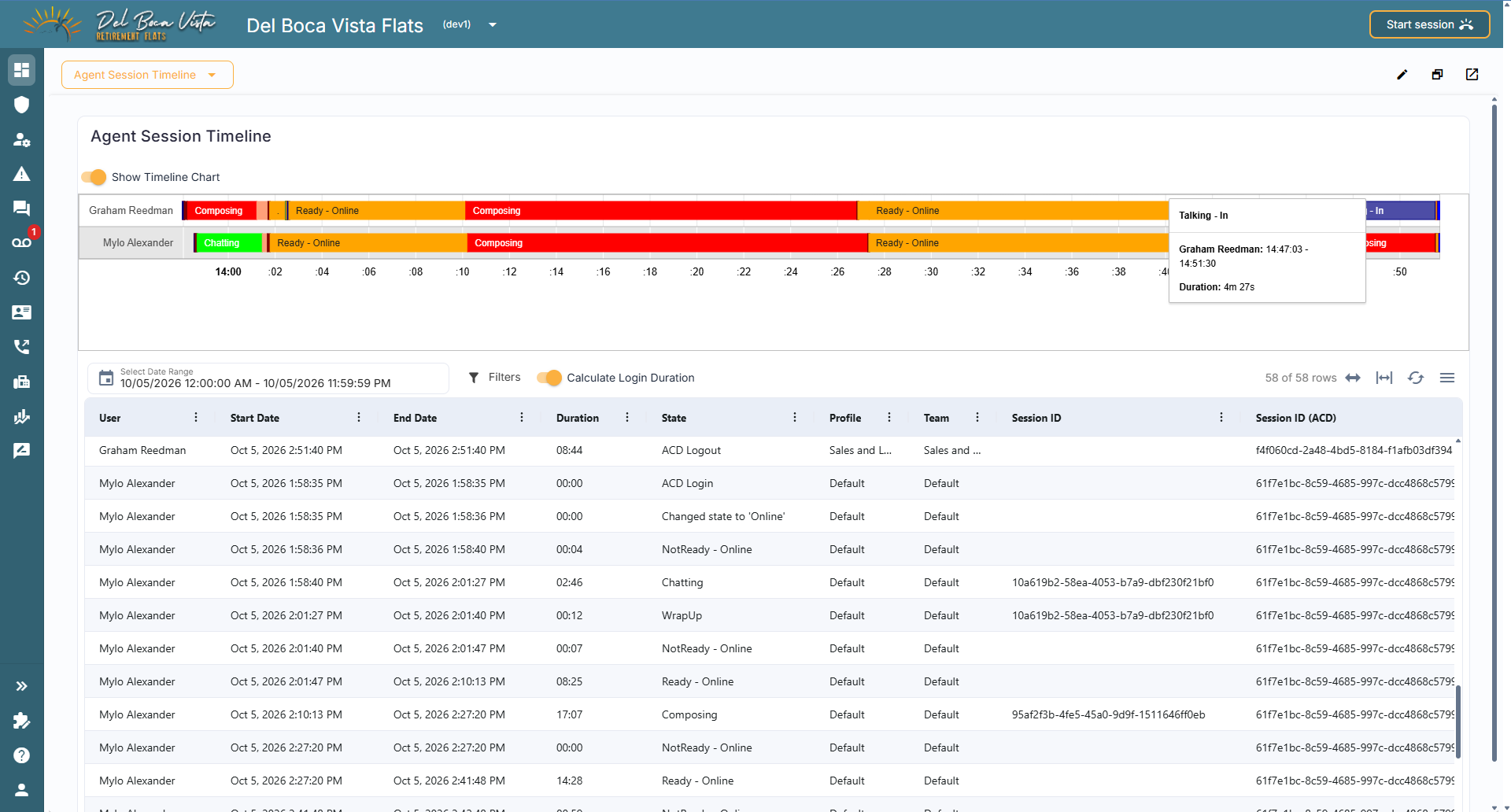
Instead of piecing together activity from separate events and metrics, the timeline presents consecutive agent states with their start and end times. Supervisors can review availability, interaction activity, holds, wrap-up, and other state changes.
Key benefits
Review agent activity across an entire session in chronological order
See when each agent state started and ended
Understand how session time was distributed across different states and activities
Investigate periods of agent activity without reconciling separate logs
Continuous Session Timeline
Agent activity is presented as a continuous sequence of non-overlapping events from login through logout. Each event includes its start and end time, providing a clear view of state transitions and the duration of each period.
The timeline includes:
Login and logout
Ready and Not Ready states, including applicable reason codes
Inbound and outbound activity
Hold and wrap-up periods
Routing and Busy states
The timeline automatically adapts to the selected date and time range and the number of agents included, helping keep agent activity readable as the scope of the dashboard changes.
Filtering and Session Duration
Supervisors can focus the timeline using filters for:
User
State
Team
An optional setting can also calculate the total login duration for each agent session. When enabled, the Duration column for the logout event displays the total duration of the agent's session from login to logout. When disabled, the Duration column displays the duration of the individual state represented by an event.
?See knowledge base article Agent Session Timeline.
Progressive Dialing for Preview Dialer
Keep outbound campaigns moving by automatically dialing contacts as agents become available.
A new Progressive dialing mode provides a faster-paced alternative to preview dialing for outbound campaigns. Instead of presenting each contact to an agent for review before dialing, progressive dialing automatically places the call when the contact is allocated to a ready agent. (14849)
This allows organizations to choose the dialing approach that best suits each campaign: Preview when agents need time to review contact information before deciding whether to dial, or Progressive when contacts should be dialed automatically as agents become available.
Key benefits
Reduce the time between an agent becoming available and the next outbound call
Automatically dial allocated contacts without requiring agents to accept or discard them
Use existing campaign call handling, wrap-up, outcome tracking, and reporting workflows
Switch between Preview and Progressive dialing mode on the fly as campaign requirements change
Configure the Dialing Mode
A new Dialing Mode in preview campaigns configuration allows administrators to select:
Preview - Presents the allocated contact to the agent before the call is placed, allowing time to review the contact and, where configured, accept or discard it.
Progressive - Automatically places the outbound call when a contact is allocated to a ready agent, without requiring the agent to accept the contact first.
Existing and new campaigns default to Preview.
When Progressive is selected, Preview Timeout and Allow Discard are hidden because these preview-specific controls do not apply. Their existing settings are retained and restored if the campaign is switched back to Preview. Campaigns can be switched between preview and progressive dialing as requirements change, including while the campaign is running.
Progressive dialing uses the existing preview campaign infrastructure, so call delivery, wrap-up, outcome tracking, and agent reporting continue to operate through the same workflows.
?See knowledge base article Preview Campaigns.
Real-Time Priority and Competency Visibility
Gain greater visibility into how contacts are prioritized and routed with new real-time priority and competency information, together with historical queue priority reporting.
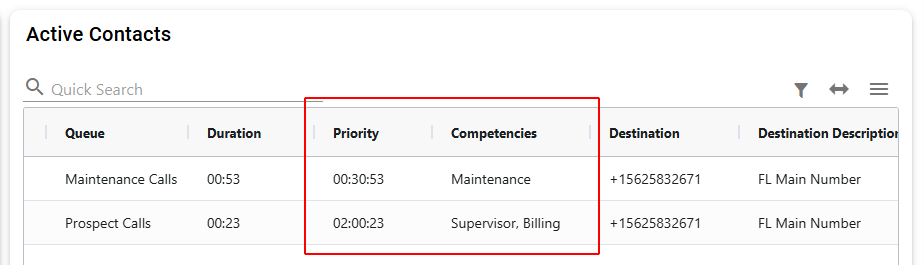
Supervisors and reporting users can now see more of the information used to determine how contacts are routed through queues. New Priority and Competencies columns in the Active Contacts dashboard card provide greater visibility into contacts currently waiting in queues, while a new Priority reporting metric captures the cumulative priority held by a contact when it entered a queue. (17117)
Together, these enhancements make it easier to understand routing behavior in real time and analyze the effect of routing configuration historically.
Key benefits
See the current accrued priority of contacts waiting in queue
View the competencies required to route each interaction
Compare the effect of cumulative base priority and time spent waiting
Troubleshoot unexpected routing behavior using real-time routing information
Report on the cumulative priority held by a contact when it entered a queue
Analyze priority independently from the additional priority accrued while waiting
Real-time Accrued Priority
The Active Contacts dashboard card now includes a Priority column, displayed as HH:MM:SS.
Priority represents the contact's current priority while waiting in the queue. It combines the cumulative base priority applied through relevant routing stages, such as touchpoints, menus, and queues, with the additional priority accrued while the contact waits. The cumulative base priority is treated as a number of minutes before being combined with the contact's time in the queue and displayed as HH:MM:SS.
For example, a contact that enters a queue with a cumulative base priority of 120 and has subsequently waited for 30 seconds displays a Priority of 02:00:30 (120 minutes of cumulative base priority plus 30 seconds of additional priority accrued while waiting in the queue).
If a contact enters the queue with no cumulative base priority, its Priority reflects only the additional priority accrued while waiting in the queue.
Real-Time Competency Requirements
The Active Contacts card also displays the competencies currently required to route each interaction. If a contact is requeued with different competency requirements, the Competencies column is updated to reflect the new requirements.
This gives supervisors additional context when reviewing waiting contacts and helps identify situations where competency requirements may be affecting interaction delivery.
Historical Priority Reporting
A new Priority metric is available for historical reporting.
Unlike Priority in the Active Contacts card, which continues to increase while a contact waits, the Priority reporting metric records the cumulative base priority held by the contact when it entered a queue. This allows the priority established through routing configuration to be analyzed independently from the contact's actual time spent waiting.
Priority is reported as a numeric value. For example, if a contact enters a queue with a cumulative base priority of 120, the metric displays 120.
When an interaction enters multiple queues, the applicable cumulative base priority is retained against each queue segment.
The new Priority metric is available for detail and summary reports and has been added to CDR Detail.

Cross Contact Center Monitoring
Monitor and supervise multiple contact centers from a single dashboard.
Organizations operating multiple contact centers can now bring real-time queue and agent activity together into a single master contact center, giving supervisors a consolidated view of operations without switching between separate environments. (16209)
Approved queue data from one or more source contact centers can be displayed alongside local data using custom dashboard cards. Supervisors can see agent availability and states in real time and, where required, use Silent Monitor, Coach, and Barge across contact center boundaries.
This feature provides centralized operational visibility while allowing each source contact center to retain control over exactly which queues and data it shares with the master.
Unlike Cross Center Reporting, which provides individual clients with scoped access to contact center reporting data through a separate Cross Center Reporting Contact Center, Cross Contact Center Monitoring is designed for centralized, real-time operational monitoring and supervision across multiple contact centers.
Key benefits
Monitor multiple contact centers from a single operational dashboard
View real-time agent counts and states across approved remote queues
Silent Monitor, Coach, and Barge agents across contact center boundaries
Consolidate data from multiple source contact centers within one master contact center
Maintain local control through explicit queue-level approval and permissioning
Change shared queues or revoke access without restarting the connection
Real-time cross-center dashboards
Two new dashboard cards within the master contact center display real-time information from approved source contact centers.
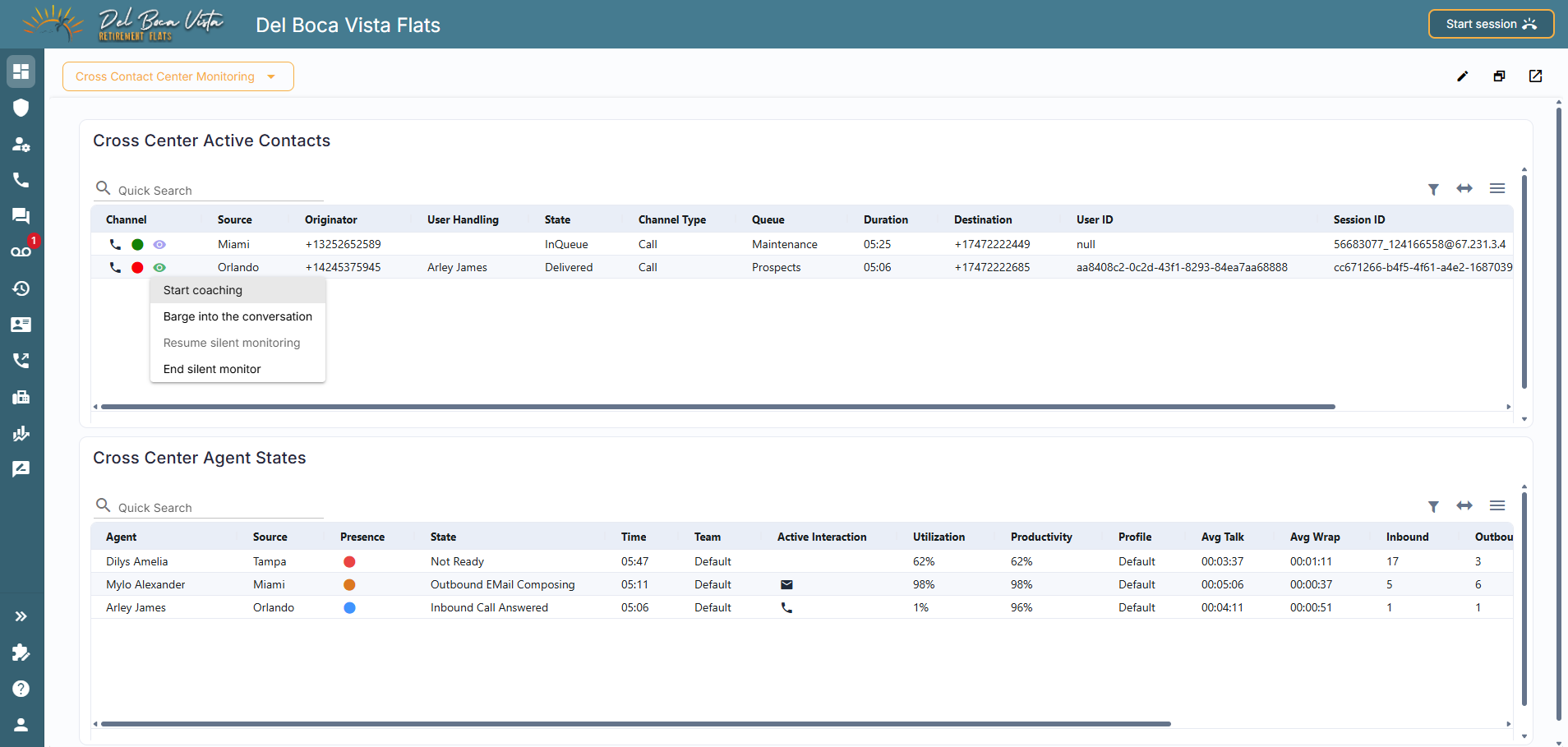
The master contact center can connect to multiple source contact centers and monitor multiple queues from each source. Data can be viewed by individual source or combined into a consolidated view, with the Source column identifying the originating Contact Center. Dashboard cards can also be filtered by source.
Dashboard cards display agent counts and current states, including Available, Busy, Wrap-up, and Break, with changes reflected in near real time. Cross Center Agent States can also be configured to include logged-off agents.
Cross-center monitoring and intervention
Cross-center visibility extends beyond monitoring operational metrics. Users with the Silent Monitor role can use familiar intervention tools directly from the dashboard to silent monitor an active agent conversation, coach an agent without the customer hearing the supervisor, or barge into an interaction when direct intervention is required.
Source-controlled sharing and permissions
Source contact centers remain in control of the information they share. Administrators can explicitly approve the queues authorized for cross-center sharing. Data is not transmitted to the master contact center until the source approves access.
Permissions can also be changed while streaming is active. Newly approved queues begin sharing without requiring a restart, while removing or revoking permission immediately stops the associated data stream.
?See knowledge base article Cross Contact Center Monitoring.
MFA Exemptions for Owned Users
Give administrators greater flexibility over MFA requirements for users managed directly within the contact center.
Multi-Factor Authentication (MFA) provides an important additional layer of account security, but there are scenarios where requiring an MFA for every user from every unauthenticated browser may not be practical. Organizations managing temporary workers, shared operational environments, or users without access to suitable authentication devices can now exempt specific owned users from MFA. (14587)
New controls at the contact center and individual owned user levels allow administrators to determine whether MFA exemptions are permitted and, when permitted, precisely which owned users are exempt. Exempted users are not required to complete MFA.
Key benefits
Support users for whom MFA is operationally impractical
Maintain MFA as the standard authentication requirement while allowing controlled exceptions
Manage exemptions individually rather than weakening authentication requirements for all users
Restrict MFA exemptions specifically to owned users
Audit changes to MFA policies and individual exemptions through the Change Log
Contact Center-Level Control
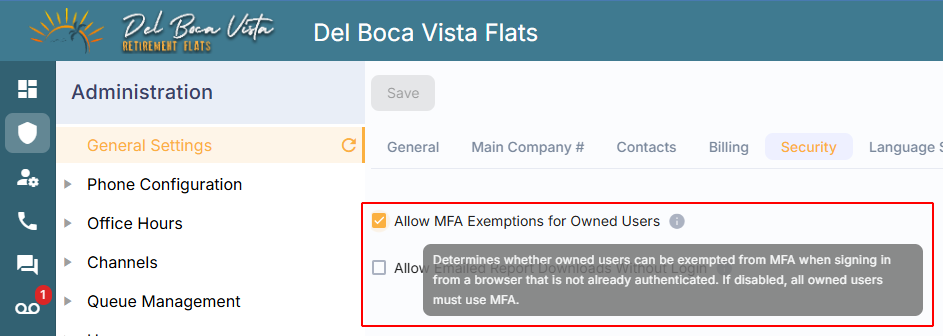
A new Allow MFA Exemptions for Owned Users setting has been added that acts as the master control for MFA exemptions. When disabled, owned users cannot be exempted from MFA. When enabled, authorized administrators can exempt individual owned users where required.
 Individual User Exemptions
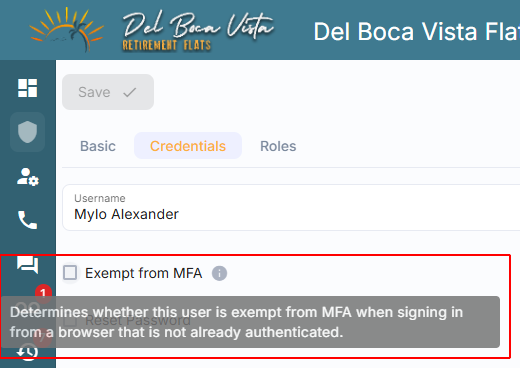
When contact center level exemptions are permitted, an Exempt from MFA setting has been added for each owned user. Enabling this setting removes the MFA requirement for that user.
MFA exemptions apply only to owned users. Other native users and users authenticated through SSO cannot be exempted using these controls.
Auditing and Security
A new optional MFA Exempt column has been added to the All Users grid showing True for owned users who have been exempted from MFA requirements.
Enabling or disabling exemptions at either the contact center or individual owned user level is recorded in the Change Log. Administrators are also warned when applying an exemption, providing clear visibility of the security implications before the change is made.
Exempting a user from MFA reduces account security, so exemption controls are restricted to authorized administrators. Access Groups provide additional control over which administrators can view and manage the Allow MFA Exemptions for Owned Users and Exempt from MFA settings. Access can be controlled independently for each setting, allowing organizations to expose either, both, or neither setting to specific administrators.
Together, these controls provide the flexibility to accommodate different workforce and operational requirements while keeping MFA exemptions explicit, controlled, and auditable.
?See knowledge base article MFA Exemptions for Owned Users.
Verint Enterprise Workforce Management (WFM) Integration
Connect Verint Enterprise Workforce Management directly to your contact center for real-time agent visibility and automated workforce planning data.
The new Verint Enterprise Workforce Management (WFM) Integration provides Verint Enterprise with the contact center data needed to support workforce planning, scheduling, and adherence management. (17432, 26.2.4)
The integration combines real-time agent activity with automated hourly queue performance data, reducing the need to manually export and transfer contact center data into Verint.
Key benefits
Provide Verint with real-time agent state and availability data
Support real-time adherence monitoring using current agent activity
Automatically deliver hourly queue performance data for workforce planning and forecasting
Reduce reliance on manually generated reports and data exports
Bring contact center workforce data directly into Verint Enterprise
Real-Time Agent Activity
The integration sends agent activity and state changes to Verint Enterprise in real time, providing workforce teams with visibility of current agent status and availability.
This allows planned schedules in Verint to be compared with actual agent activity, supporting real-time adherence monitoring and intraday workforce management.
Automated Hourly Queue Data
A new Verint Enterprise - Queue Data system report provides the historical queue data required by the integration.
Queue statistics and performance metrics are aggregated by hour and automatically provided to Verint Enterprise, where they can be used to support forecasting, workforce planning, and scheduling.
A new Verint WFM Enterprise module enables the integration. This is a system-installed module. Contact your Support representative for assistance with enabling and configuring the integration.
Agent Experience Click to Dial for Chromium-Based Browsers
Start outbound calls directly from telephone numbers displayed on web pages using the Agent Experience or Agent Experience PWA.
The Agent Experience Click to Dial extension for Chromium-based browsers allows agents to start outbound calls directly from telephone numbers displayed on web pages, removing the need to copy and manually enter them. (17414)
Whether working in a web-based CRM, back-office application, or other website, the extension automatically scans pages for telephone numbers matching configured countries and identifies them for click-to-dial. Selecting an identified number prepares a new outbound call in the Agent Experience running in the same browser or its installed PWA.
The Agent Experience PWA can also be used as the telephony application for tel: links, allowing agents to start calls from telephone numbers already configured as telephone links without requiring the extension to identify them.
Key benefits
Start outbound calls directly from telephone numbers on web pages
Use click-to-dial with the browser-based Agent Experience or Agent Experience PWA
Use the Agent Experience PWA as the telephony application for tel: links
Reduce manual copying and entry of telephone numbers
Automatically identify telephone numbers for configured countries
Configure multiple countries for telephone number detection
Control which websites are scanned for telephone numbers
Automatic Telephone Number Detection
The extension automatically scans web pages for telephone numbers matching configured ISO Alpha-2 country codes. A default country code is selected based on the browser language, and agents can configure additional country codes when telephone numbers from multiple countries need to be identified.
Identified telephone numbers are displayed with a blue wavy underline, making them available for click-to-dial.
Calling Through Agent Experience
When an agent selects an identified telephone number, the Agent Experience is brought to the foreground and automatically switches to the New Call view. The selected telephone number is automatically entered in To, ready for the agent to select the required outbound Caller ID and initiate the call.
The extension can be used with the Agent Experience running in a Chromium-based browser or with the Agent Experience PWA where the browser supports PWA installation. The Agent Experience or PWA and the web page containing the telephone number must use the same Chromium-based browser.
The extension cannot be used with the Desktop Experience or Mobile Experience.
Agent Experience PWA for tel: Links
The Agent Experience PWA can also be selected as the telephony application for tel: links. When an agent selects a tel: link on a web page, the PWA opens the New Call view with the telephone number automatically entered in To, ready for the agent to select the required outbound Caller ID and initiate the call.
This functionality is available only when using the Agent Experience as an installed PWA. The Agent Experience Click to Dial extension is not required for telephone numbers that are already configured as tel: links by the website or application.
Website Controls
Agents can prevent the extension from scanning websites where click-to-dial is not required.
Select Don't run on this site from the extension menu to disable scanning for the current website. Scanning can subsequently be restored by selecting Allow on this site.
Availability
Agent Experience Click to Dial is available as a browser extension for Chromium-based browsers and can be installed from the Chrome Web Store.
Partner-ready source code can be made available for organizations that want to provide a custom-branded version of the extension with their own privacy policy.
?See knowledge base article Outbound Dialing Using the Agent Experience Click to Dial Extension.
Enhanced Email Queue Rules
Automatically identify and manage incoming emails based on their sender, subject, or content, giving contact centers greater control over email routing and handling.
A new Email sender, subject or body matches condition extends Queue Rules, allowing administrators to identify incoming emails based on configurable matching criteria and automatically apply the appropriate actions. (16967)
This provides greater flexibility to prioritize important messages, automate responses, trigger alerts, and customize email handling without creating separate queues or requiring development support.
Key benefits
Identify important emails - Match incoming emails against sender addresses, domains, or specific words and phrases in the subject or body.
Configure flexible matching - Choose whether any or all populated matching criteria must be met.
Improve matching accuracy - Use whole-word matching to avoid unintended matches within longer words.
Automate email handling - Trigger alerts, manage automatic replies, adjust queue properties, or run custom flowcharts when emails match.
Prioritize time-sensitive requests - Assign additional priority to matching emails to help agents respond sooner.
Test matching criteria - Validate conditions against a sample email before applying them.
Configuring Email Matching Conditions
Administrators can select the new Email sender, subject or body matches condition in an email Queue Rule.
Rules can evaluate incoming emails using:
Exact sender email addresses
Sender domain
Email subject content
Email body content
Administrators can choose whether any or all populated fields must match for the condition to be satisfied. Whole-word matching is also supported, helping prevent unintended matches within longer words or phrases. A built-in testing option allows administrators to check their matching criteria against a sample email.
Automated Actions for Matching Emails
When an incoming email meets the configured conditions, Queue Rules can automatically perform a range of actions:
Send email alerts - Trigger email notifications when matching messages are received.
Add an automatic reply - Apply an automatic response to matching emails.
Replace an existing automatic reply - Override an existing automatic response with a different one.
Change queue properties - Modify queue properties for the matching email.
Set Priority - Assign additional priority to influence the email's position in the queue.
Run a custom flowchart - Trigger a configured flowchart for additional processing.
These actions allow contact centers to tailor email handling to different customer requirements, message types, and operational priorities.
Email Priority Routing
The Set Priority action allows administrators to give matching emails additional priority in the queue.
Each priority unit provides the equivalent of a one-minute head start. For example, assigning a priority of 60 gives a matching email 60 minutes of additional waiting priority, allowing it to move ahead of emails that have been waiting for up to an hour, assuming other priority factors are equal.
For queues handling both email and voice interactions, administrators should consider the relative priority values to avoid unintentionally prioritizing emails over voice calls.
Business User
Profiles
Simplify Business User administration with reusable profiles that provide consistent phone settings while allowing individual customization.
Business User Profiles allow administrators to define shared Business Mobile Experience settings and apply them to multiple Business Users, reducing repetitive configuration and helping maintain consistency across the organization. (16455, 17129, 16457)
Administrators can create profiles, assign them to users, and override inherited settings where individual exceptions are required. Business Users can also manage their own calling preferences in Business Mobile Experience, within the settings and permissions available to them.
Key benefits
Simplify administration - Define shared settings once and apply them to multiple Business Users.
Maintain consistency - Manage Team assignments, authorized Caller IDs, presence states, and call forwarding rules centrally.
Support individual exceptions - Override inherited settings without affecting other users assigned to the same profile.
Give Business Users flexibility - Allow users to manage their calling preferences within their authorized settings.
Streamline user management - Assign profiles individually or through bulk operations, with safeguards against accidental deletion.
Create Business User Profiles
Administrators create and manage Business User Profiles to define the settings shared by assigned users. Each profile includes:
Team assignment - Assign a Team to support team-based access through Filter Groups.
Authorized Caller IDs - Define the outbound-enabled telephone numbers users can select when making calls.
Presence states - Define which custom presence states are available to users.
Call forwarding - Configure default forwarding rules for individual presence states.
New custom presence states initially have a forwarding rule of N/A and remain unavailable to users until a forwarding rule is configured through their profile or their individual settings.
Administrators can create multiple profiles to accommodate different teams, departments, or operational requirements.
Assign Business User Profiles
Once a profile has been created, administrators can assign it to Business Users. Profiles can be assigned:
During user creation or invitation.
Individually when managing an existing Business User.
When a profile is assigned, the Business User inherits its configured Team, authorized Caller IDs, presence states, and call forwarding rules.
Users with both ACD and Business User roles have a separate profile for each role, allowing their contact center and business phone settings to be managed independently.
Administrator Overrides for Individual Business Users
Administrators can customize selected settings for individual Business Users without changing the shared Business User Profile. Supported overrides include:
Authorized Caller IDs - Assign a different selection of outbound-enabled telephone numbers.
Presence states - Customize which presence states are available to the user.
Call forwarding - Adjust forwarding rules for individual presence states.
Individual overrides are intended for exceptions rather than as the primary configuration method. For example, a manager might need additional outbound Caller IDs, a specialist might require different presence states, or an employee might need calls forwarded to a different number when unavailable.
These exceptions can be managed without affecting other users assigned to the same profile. Where multiple users require the same settings, creating a separate Business User Profile is generally easier to maintain.
A banner indicates when a user's settings have been overridden and provides an option to reset all overrides to restore the profile's configuration.
Team assignments cannot be overridden. A Business User's Team is always determined by their assigned profile.
Allow Business Users to Customize Their Settings
Business Users can customize supported phone settings directly in Business Mobile Experience, giving them flexibility to manage their calling preferences within the settings defined by their administrator.
For outbound calls, users can choose which authorized Caller ID to present. When multiple numbers are available, the first authorized number is used by default unless the user selects another. If only one number is authorized, it is selected automatically.
Business Users cannot add their own Caller IDs or change the list of numbers authorized by their administrator.
Users can also select from their available presence states and manage call forwarding settings, allowing them to control their availability and how incoming calls are handled.
Managing Business User Profiles
Administrators can update Business User Profiles as requirements change, keeping shared settings consistent across assigned users.
When a profile is updated, changes automatically apply to assigned users for settings that have not been individually overridden. Existing overrides are preserved.
Changing a user's assigned Business User Profile resets all existing administrator overrides, replacing them with the settings defined by the newly assigned profile.
If a Caller ID is no longer authorized, it is removed from the user's available selection.
Profiles assigned to one or more Business Users cannot be deleted. The system identifies the affected users so administrators can update their profile assignments before deleting the profile.
?See knowledge base article Business User Profiles.
Presence States
Give Business Users more ways to communicate their availability, with custom presence states and call forwarding rules that reflect how your teams work.
Administrators can now create up to five custom presence states alongside the built-in Do Not Disturb, Away, Not Logged In, and Busy states. These additional states help Business Users communicate their availability while allowing administrators to control how incoming calls are handled. (16520)
For example, an employee attending a meeting could select In a Meeting to forward calls to voicemail, while a sales representative visiting a customer could select With Customer to redirect calls to an alternative number. Each state can have its own forwarding rules, allowing call handling to reflect how and where people are working.
Key benefits
Customize availability - Create up to five custom presence states, each with a unique name, a color from a predefined selection, and a default action.
Control call forwarding - Configure forwarding rules for each state through Business User Profiles or individual user settings.
Manage state availability - Make custom states available only to users with an associated forwarding rule.
Improve visibility - Display each user's selected presence state, including its name and color, in Contacts.
Prevent accidental deletion - Custom presence states that are currently in use are protected from deletion
Configuring Custom Presence States
Administrators can create and manage up to five custom presence states to reflect different working arrangements and availability requirements.
Each custom state must have a unique name, a default action, and a color selected from the predefined options. Each new state initially has a forwarding rule of N/A in every Business User Profile and remains unavailable to users until a forwarding rule is configured through their profile or individual forwarding settings.
This allows administrators to control which states are available to different users and how incoming calls are handled when those states are selected.
Using Custom Presence States
Business Users select their available presence states directly in Business Mobile Experience. The selected state appears by name and color in the Contacts - Teams directory, helping colleagues understand each other's availability.
Incoming calls are handled according to the forwarding rule configured for the selected state.
?See knowledge base article Presence States.
Report Metric Glossary
Find and understand available reporting metrics from a single reference within Reports.
The new Report Metric Glossary provides report designers with a central reference for the metrics available when building reports, making it easier to review all metrics and select the appropriate data for a report. (14408)
Instead of reviewing definitions on a metric-by-metric basis while designing reports, users can access the glossary directly from the Reports grid and keep it open alongside their reporting workflow.
Centralized Metric Reference
A new  View a Glossary of Report Metrics button in the top-right corner of the Reports grid opens the glossary in a separate browser tab.
The glossary provides a read-only grid containing both system-owned metrics and custom metrics created for the contact center.
Users can:
Search for metrics by title
Filter between system and custom metrics
Filter metrics by category
Sort metrics alphabetically
View the details of individual metrics
Export the full or filtered glossary to CSV
Metric Details
Selecting  View Metric Details for any metric displays the same metric description available when reviewing the metric while designing a report.
This gives report designers a more convenient way to review metric definitions alongside building or maintaining reports.
?See knowledge base article Report Metric Glossary.
Enhancements
Agent Experience
Start Session
Launch Agent Experience or Business Mobile Experience directly from the Admin Portal.
The Start Session button in the Admin Portal now provides access to the web user experiences available to the logged-in user based on their assigned roles. (17124)
What's changed
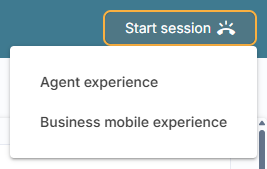 Users with both ACD and Business User roles can select Start Session and choose between Agent Experience and Business Mobile Experience from a dropdown. Only one application may be
Users with only an ACD role can select Start Session to launch Agent Experience directly.
Users with only a Business User role can select Start Session to launch the web Business Mobile Experience directly.
The available options are determined by the roles assigned to the logged-in user.
Users cannot be logged in to Agent Experience and Business Mobile Experience at the same time. Launching and logging in to one experience automatically logs the user out of the other.
If the user is handling an active call when they log in to the other experience, the active call is disconnected.
This enhancement provides a consistent way to launch the appropriate user experience directly from the Admin Portal while ensuring that only one user experience is active at a time.
Park & Retrieve
Manage parked MetaWhatsApp and email channel interactions directly from Agent Experience.
A new Parked panel allows agents to access, review, and resume parked interactions when they are ready. Agents can temporarily park conversations while waiting for customer responses or additional information, freeing up capacity to handle other interactions. (16010)
What's changed
 Park Interactions
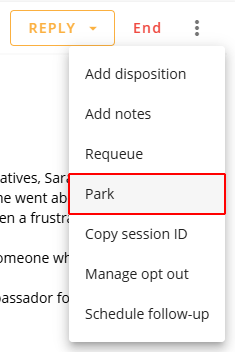
Agents can park active MetaWhatsApp and email interactions directly from the interaction.
To park an interaction, open the interaction's three-dot menu and select Park. This option is only displayed for interactions belonging to queues where parking is enabled.
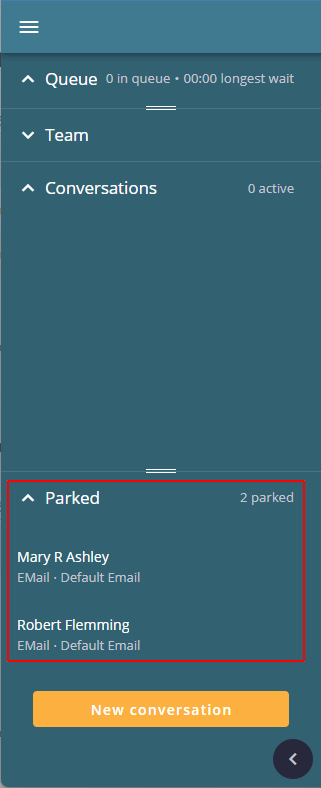
Agents can add private notes when parking an interaction to provide context for when they return.
Parking removes the interaction from the agent's active workload and releases its concurrency slot. The interaction moves to the new Parked panel and remains assigned to the agent until it is retrieved or the configured parking timeout expires.
New Parked Panel
A new Parked panel in the Agent Experience sidebar displays all interactions currently parked by the agent, along with the total number parked.
Select a parked interaction to open a read-only preview and choose whether to repark it or retrieve it.
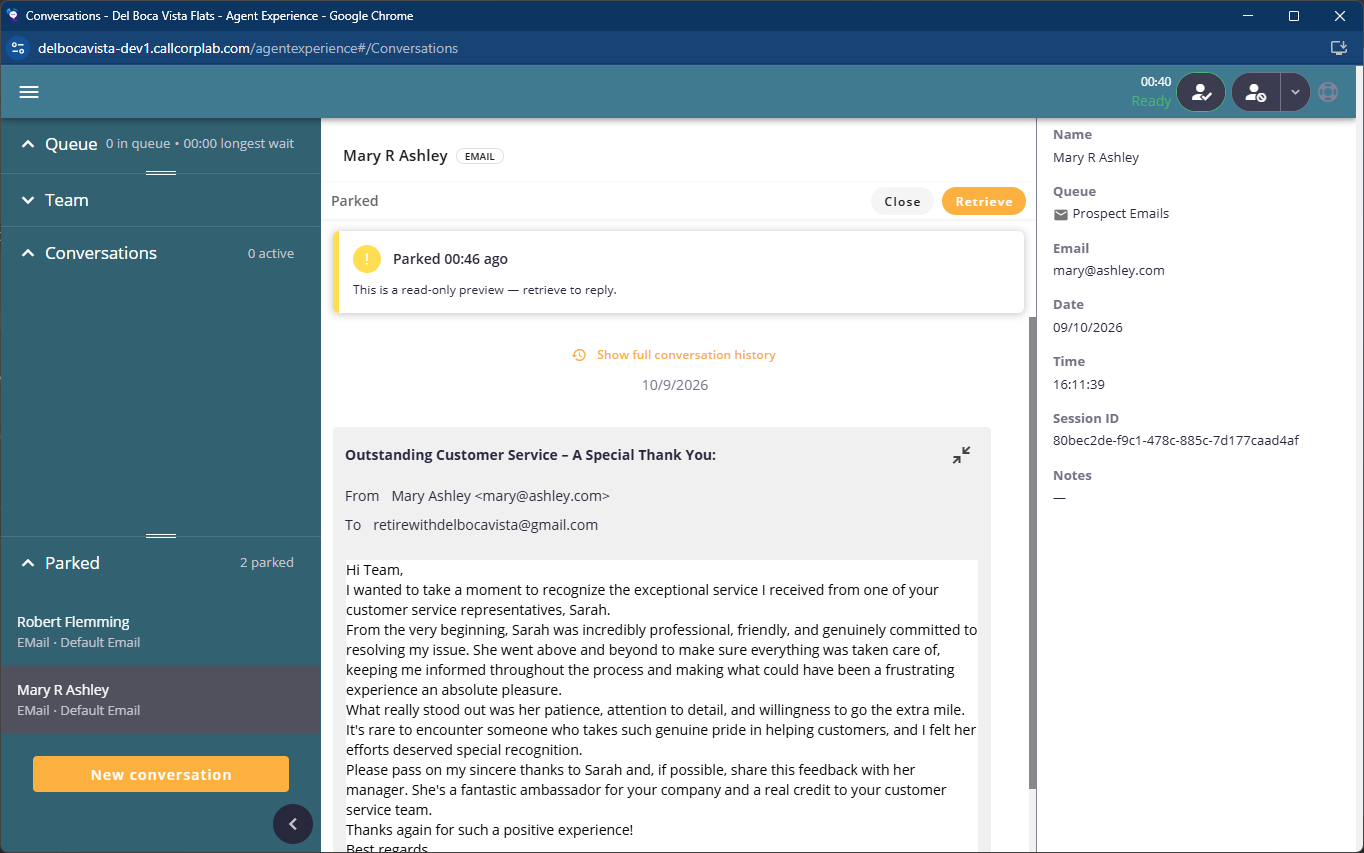
Review the conversation history, including earlier messages, and any private notes added when parking.
See how long the interaction has been parked.
Select Close to return to the Parked panel without resuming the interaction.
Select Retrieve to resume handling the interaction.
Retrieve and Resume Interactions
When an agent selects Retrieve, the interaction becomes active again and counts toward their concurrency limit.
Agents can then continue the conversation or park it again if they need more time before responding.
Parked interactions remain available across login sessions, provided the configured parking timeout has not expired. Agents can only retrieve interactions they have parked themselves. The number of interactions an agent can park, and whether they can retrieve them when at their concurrency limit, depends on their ACD User Profile settings.
This enhancement gives agents a dedicated space to manage parked conversations, review their context, and resume work without unnecessarily occupying active interaction capacity.
Hold Visibility and Tracking
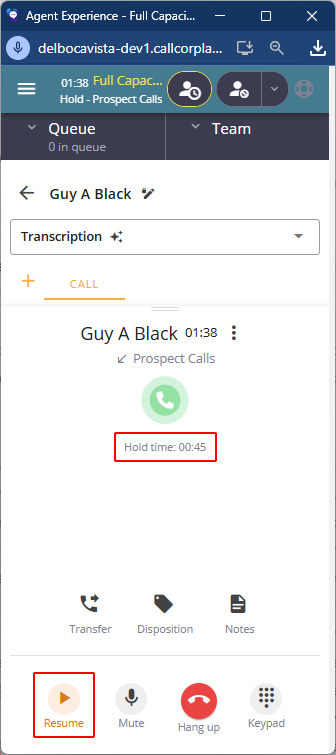 Help agents keep track of how long customers have been on hold.
The Agent Experience now displays the elapsed hold time while a contact is on hold, giving agents greater visibility of how long the current hold has lasted. (14899)
What's changed
A new Hold time timer starts at 00:00 each time a contact is placed on hold and increments for the duration of that hold.
The timer is cleared when the contact is resumed and starts again from 00:00 if the contact is placed on hold again.
The Resume button changes color while the contact is on hold, making the current call state easier to identify at a glance.
The hold timer is displayed in addition to the overall interaction duration, allowing agents to distinguish the current hold duration from the total call time.
Hold time is synchronized between the agent-facing timer and the hold metrics in management dashboards.
This enhancement is active automatically across all agent interfaces and gives agents clearer real-time visibility of hold duration, helping them manage time spent on hold during customer interactions.
Draft Recovery
Unsent message content is now automatically restored if an agent's session is interrupted or disconnected, helping prevent agents from losing work in progress. (17577)
Draft recovery is supported for chat, email, SMS, and WhatsApp interactions. When the agent returns to the interaction, their unsent message is restored so they can continue where they left off.
Scheduled Follow-Up Discard Confirmation
Help prevent scheduled follow-ups from being discarded accidentally.
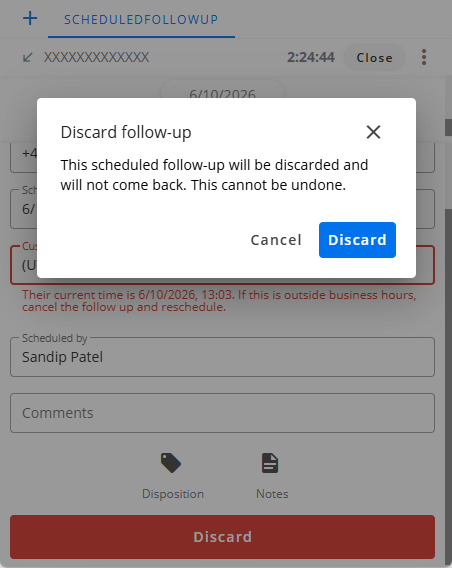
Agents are now asked to confirm before discarding a scheduled follow-up in Agent Experience, providing an additional safeguard against accidental deletion. (17499)
What's changed
Selecting Discard for a scheduled follow-up now displays a confirmation dialog before the follow-up is deleted.
The confirmation explains that discarding the follow-up cannot be undone.
Cancel receives focus by default, reducing the risk of accidentally confirming the action.
Agents can navigate and respond to the confirmation using a keyboard, including using Escape to close it.
Improved Email Discard and End Confirmations
Help agents avoid accidentally discarding email drafts or ending active interactions.
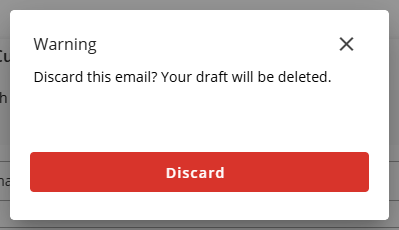
Separate confirmation messages for discarding and ending an email interaction now make it clearer what will happen when an agent selects either action. (10689)
Discard - Warns agents that their unsent email draft will be deleted.
End - Warns agents that the active email interaction will be ended. If needed, agents can continue the conversation by replying via Recents.
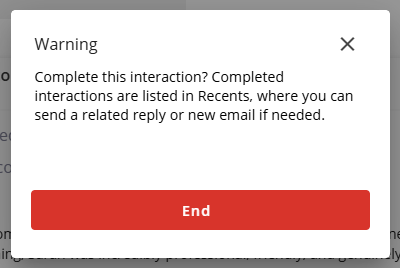
These clearer confirmations help prevent accidental loss of unsent messages and premature interaction closure.
Interaction Tools
Access side-panel screen pops, handoff information, and AI Assistant summaries in a dedicated area of Agent Experience.
The new Interaction Tools area brings together information associated with an agent's interactions, with separate tabs for each screen pop configured to open in the side panel. Screen pops configured to open in a browser tab or new window continue to behave as before. (17086, 17087)
What's changed
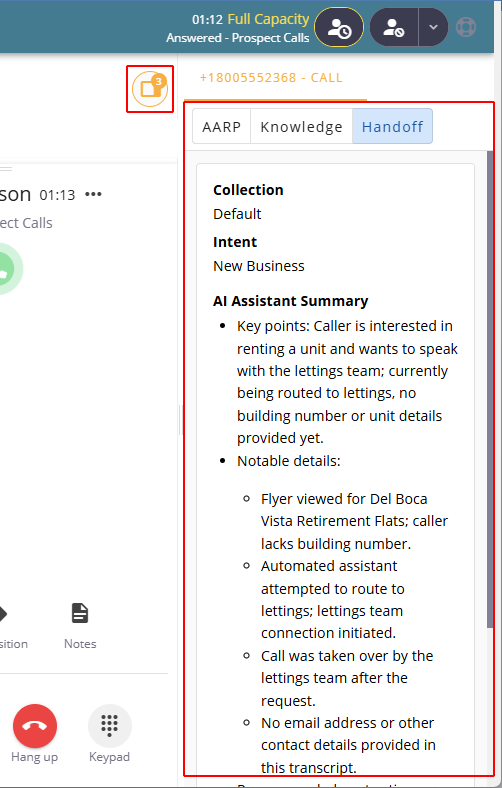
Tabbed screen pops - Each screen pop configured to open in the side panel is displayed in its own tab, allowing agents to switch between available tools and information.
Interaction-specific content - Screen pops and handoff information remain associated with their respective interactions, helping agents access the correct information when handling multiple conversations.
AI Assistant summaries - AI Assistant summaries are now also displayed within the Interaction Tools area.
Show or hide tools - An Open/Close Interaction Tools icon allows agents to show or hide the area as needed and shows a count of tools available.
Responsive layout - On larger screens, Interaction Tools opens in a resizable side panel. On smaller or constrained screens, it opens as an overlay with a dedicated close button.
Improved navigation - The selected tool remains open when the interaction list refreshes, provided it is still available. If the viewed interaction ends, the area switches to another eligible interaction.
Individual refresh - Agents can refresh a web-based screen pop without affecting the interaction or other open tools.
Recents - Conversation History and Enhanced Email Handling
Give agents access to complete conversation histories, simpler email follow-ups.
Agents can now review written interaction histories directly from Recents, continue existing email threads, or start new email conversations. These enhancements make it easier to review previous communications and follow up with customers while maintaining conversation context. (10689)
What's changed
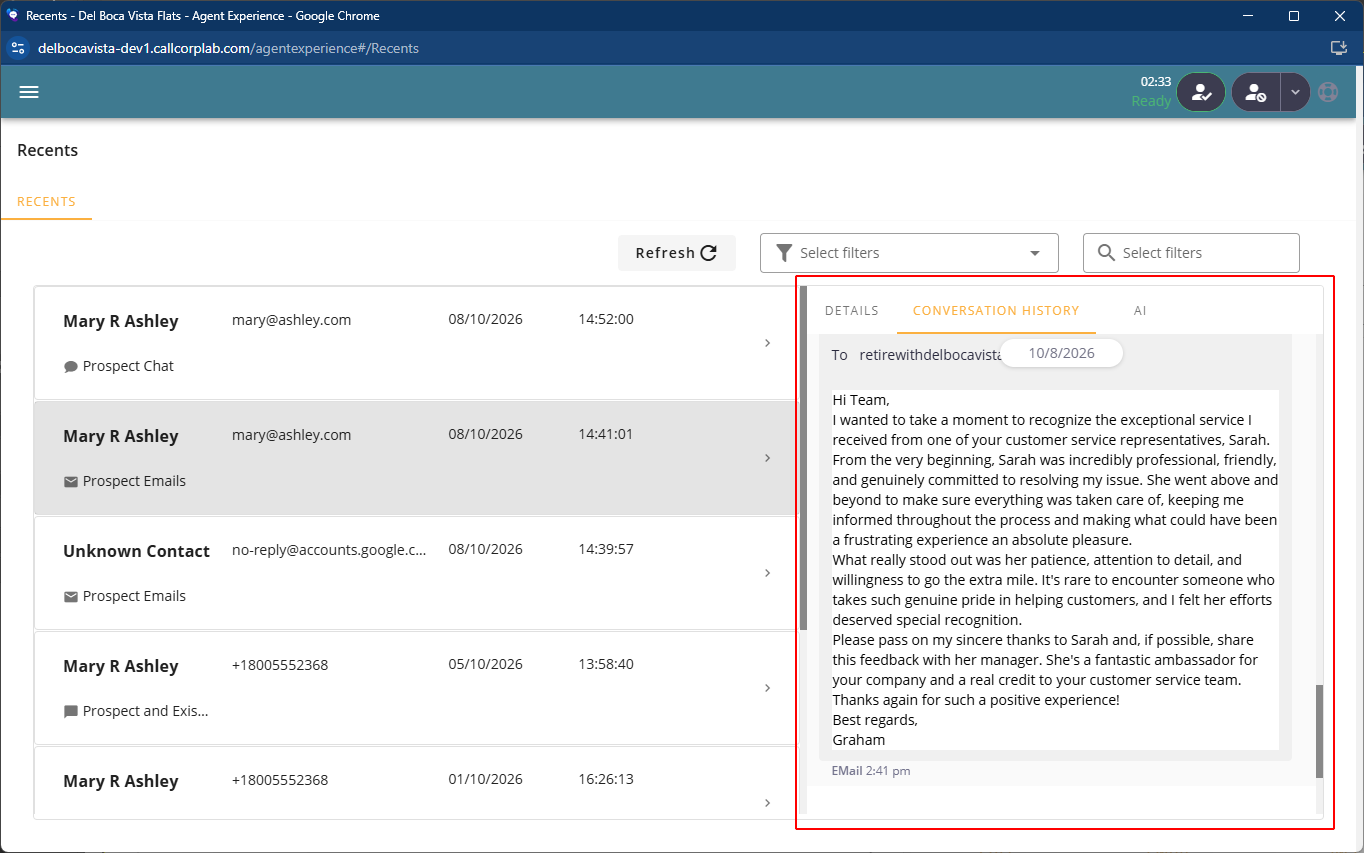
Expanded Conversation History
A new Conversation History tab in Recents allows agents to view complete chat and SMS histories, as well as expand full email message bodies, without leaving Recents.
Continue Existing Email Threads or Start New Conversations
The New conversation button for email interactions has been expanded to provide two options:
Continue thread - Resumes an existing email conversation. The new interaction is linked to the previous conversation, includes quoted earlier messages, and retains the original subject line.
New conversation - Starts a new email conversation directly from the recent contact record.
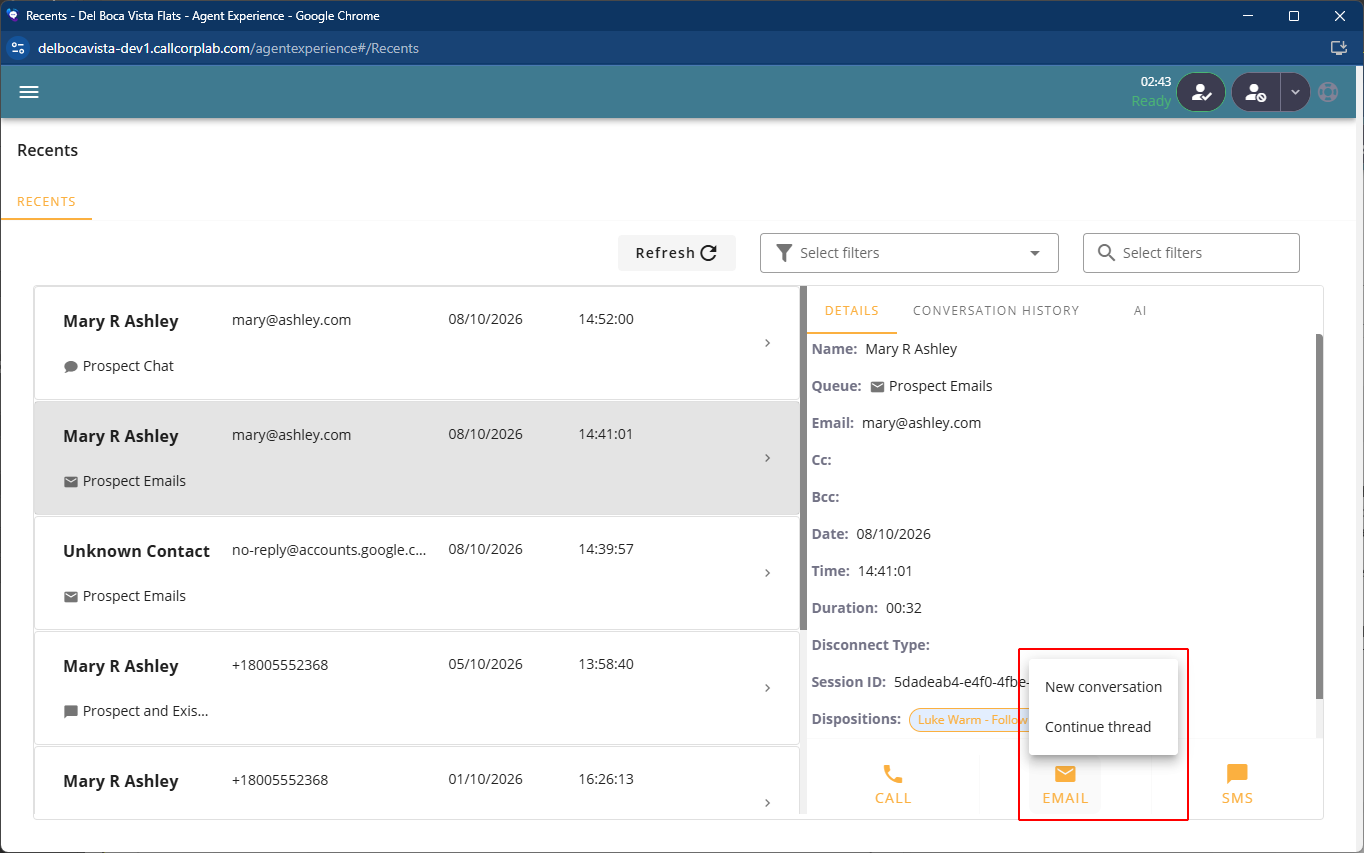
These enhancements give agents easier access to previous conversations and more flexibility when following up with customers, without losing important interaction context.
Shared Reports in Statistics
Give agents access to shared reports directly from Agent Experience Statistics.
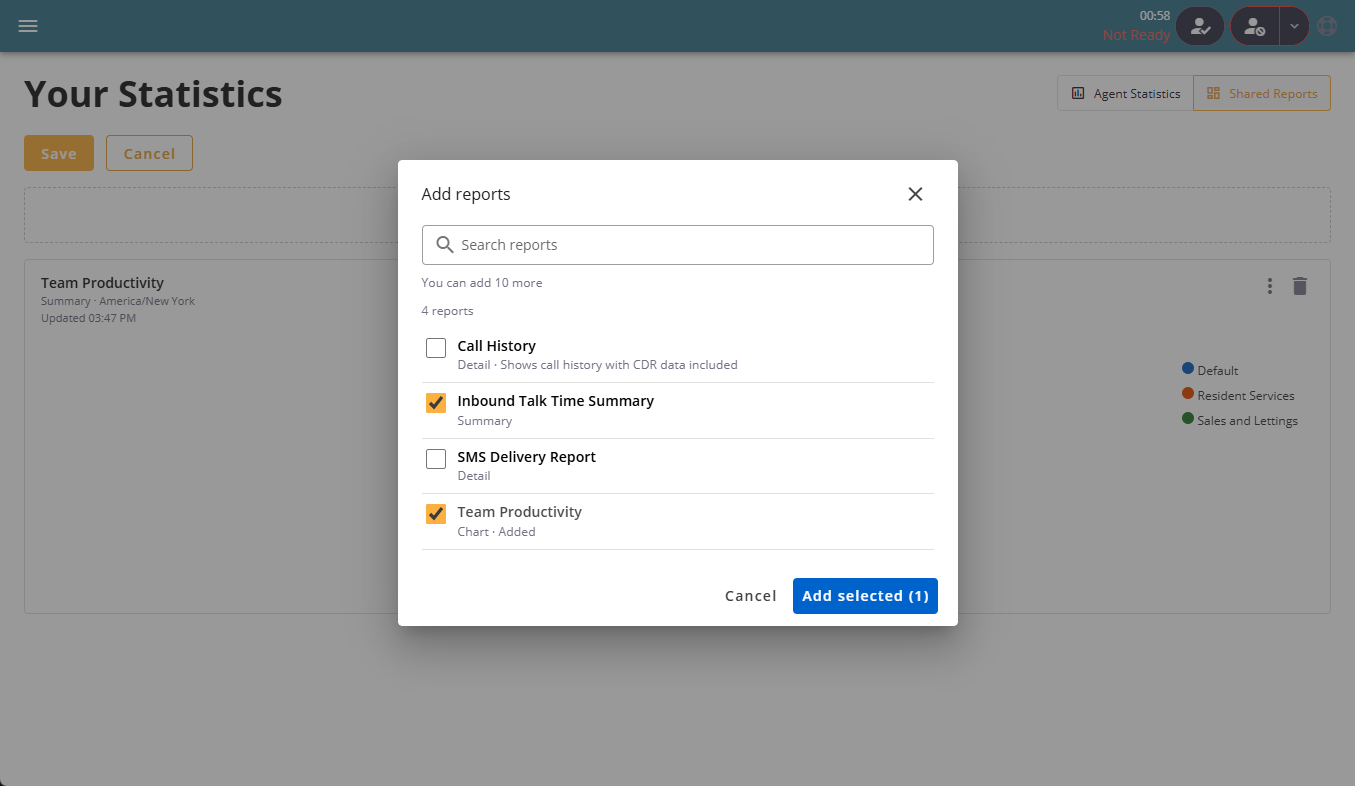
A new Shared Reports view in the Agent Experience Statistics page allows agents to view reports shared with them through Report Designer, without needing to access the Admin Portal. Agents can customize their Shared Reports view by adding, removing, and repositioning report cards to suit their needs. (17182)
What's changed
Dedicated Shared Reports view - Agents can switch between their existing statistics and a new Shared Reports dashboard in which they can view Report Designer cards shared with them, subject to existing sharing permissions and Filter Group restrictions.
Personalized reports - Agents choose which shared report cards appear, add or remove cards as their needs change, and arrange them in their preferred order with up to 12 cards on their dashboard.
Reporting administration - Report exports, scheduling, and other administrative functions remain available solely through the Admin Portal.
Considerations for Report Designers
When designing report cards for Agent Experience Statistics, consider how card layouts and the amount of information displayed will appear on different screen sizes, particularly the narrower displays of handheld devices.
Shared Reports in Statistics is available across Agent Experience (browser), Agent Experience (PWA), Desktop Experience, and Mobile Experience (iOS and Android).
?See knowledge base article View Your Statistics.
Enhanced Station Settings
Give agents greater control over calling, notifications, and interaction behavior.
Station Settings have been expanded with new controls for PSTN Caller ID selection, notification audio, desktop notifications, and automatic screen pops. These enhancements allow agents to tailor their individual experience, including options designed to improve accessibility and reduce 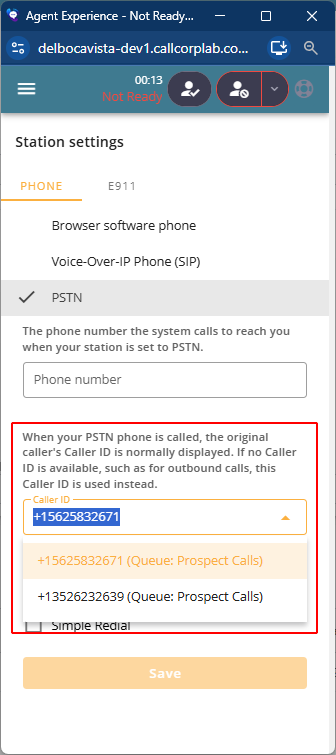 unexpected interruptions.
PSTN Caller ID Selection
Agents using a PSTN station now have a simpler way to select the Caller ID used for outbound calls. (16963, 26.2.3)
What's changed
Caller ID is now a dropdown of outbound numbers available to the agent.
Validation prevents an agent from selecting a Caller ID that matches their PSTN Phone number, helping prevent carrier routing issues.
Manual Caller ID entry remains available when no outbound numbers are appropriate.
Previously saved custom Caller IDs are preserved to maintain existing configurations.
Notification Audio
Agents can now adjust the volume of incoming interaction notification sounds or mute them completely. (17346)
What's changed
A Notification volume slider adjusts the volume of all notification sounds without affecting call audio.
The volume slider is not displayed in Mobile Experience (iOS and Android), where notification volume is controlled by the device.
Mute notifications mutes all notification sounds until the agent unmutes them.
Notification sound settings are retained across login sessions and apply across all ACD User Profiles.
When Mute notifications is disabled, a Mute control is displayed alongside Accept and Reject while an interaction is alerting. This silences only the current notification without affecting future notifications.
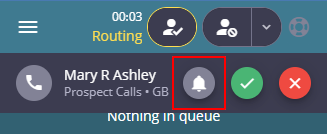
 Notification sound playing. Select to silence the current notification.
 Current notification muted. Select to resume the notification sound.
The new notification sound controls support keyboard navigation and include screen reader labels.
Disable Automatic Screen Pops
Agents can now prevent screen pops from opening automatically when an interaction is delivered. This is particularly useful for agents who use screen readers or magnifiers, where unexpected navigation or new windows can interrupt their current focus.
What's changed
Disable automatic screen pops prevents incoming interactions from automatically opening a screen pop or redirecting the agent from their current page.
When enabled, the screen pop can be opened later by selecting Repop from the interaction's three-dot menu.
Disable automatic screen pops is disabled by default, preserving existing screen pop behavior.
This enhancement allows agents who use screen readers to control when navigation occurs, reducing unexpected changes of context while keeping screen pops available when needed.
Desktop Notifications
Agents can now control desktop notifications independently from notification sounds.
What's changed
Show desktop notifications controls whether desktop notifications are displayed for incoming interactions.
Agents can mute notification sounds while continuing to receive desktop notifications, or disable desktop notifications while keeping notification sounds enabled.
Show desktop notifications is enabled by default, preserving existing behavior.
Together, these enhancements give agents more control over their individual calling and notification experience while providing additional options for agents with different accessibility and working needs.
?See knowledge base article Station Settings.
Business Mobile Experience
Sign-in Options
Give users another way to sign in to their Business Mobile Experience using their Apple account.
Sign in with Apple is available as an authentication option, allowing users to sign in using their Apple account when the feature is enabled for their contact center or environment. (17114)
Team Filters in Contacts
Find colleagues faster by filtering the internal contacts directory by team.
Users can now filter their internal contacts by team, making it easier to find colleagues in larger directories when browsing contacts or managing calls. (16458)
What's changed
Team filters are available in Contacts, Add Call, and Blind Transfer.
Filter by team - Select a team to display its members, then search within the selected team to find a specific colleague.
Respect access permissions - Users can only view teams they have permission to access.
Support multiple team memberships - Contacts appear in the results for each team they belong to.
Preserve favorites - Matching contacts appear in a single list, with existing favorites clearly identified.
Switch or clear filters - Change the selected team to update the results, or clear the filter to return to the full directory available to the user.
Outbound Caller ID Description
Make it easier for Business Phone users to identify and select the correct outbound Caller ID.
The Business Mobile Experience dialpad From number and Profile Default Voice CLI and Default SMS CLI controls display descriptive names alongside outbound Caller ID numbers, helping users distinguish between available numbers when making calls. (12692)
What's changed
Descriptive Caller IDs - Outbound Caller ID numbers now display their configured descriptions in parentheses in the dial pad and settings. For example, +1 800-555-2368 (US Inbound Number).
Centralized management - Administrators can add or update descriptions in the Admin Portal under Telephone Numbers or Caller ID-Only Numbers. Changes are reflected in the Business Mobile Experience within one minute.
Default labels - If no description is configured, the number's standard type, such as Main or DID, is displayed instead.
Voicemail Management
Enhanced voicemail management directly in the Business Mobile Experience.
Users can now save, forward, and manage voicemails directly within the application, making it easier to organize important messages and share them with colleagues. (16486)
What's changed
 Favorite voicemails - Save important voicemail messages as favorites for easy access.
 Forward voicemails - Forward voicemail messages directly to internal colleagues.
 Share voicemail recordings - Generate authenticated, time-limited playback links to share voicemail recordings securely without sharing login credentials.
Played and unplayed status - Voicemail messages are clearly identified as played or unplayed, with their status updating automatically during playback.
Synchronized voicemail management - Changes to voicemail status, favorites, and forwarding are synchronized across devices and the portal.
Notifications, Counters and App Icon Badges
 See missed calls, new voicemails, and unread chat messages through in-app notification counters and application icon badges.
Notification counters and app icon badges now help users identify missed calls, new voicemails, and unread chat messages without having to 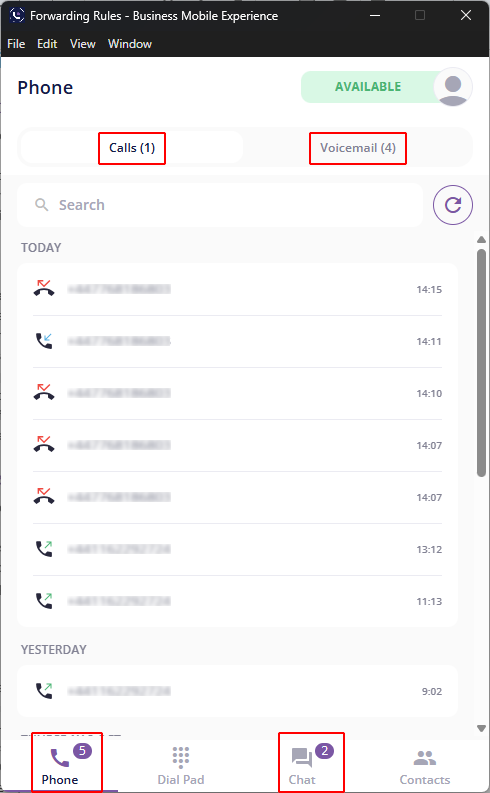 check each area of the application. (16621, 17445)
What's changed
Missed calls - Displays the number of missed calls. The badge clears when the user opens their call history.
New voicemails - Displays the number of unplayed voicemail messages. The count decreases as messages are played.
Unread chats - Displays the number of unread chat messages. The count updates as conversations are opened. Conversations with unread messages are also grouped in a dedicated Unread section at the top of the chat list, with their text displayed in bold to make them easier to find.
Counts are displayed within the application and as numerical badges on application icons, where supported. They update automatically in the background as new activity occurs and clear as users review the relevant items. Supported across iOS, Android, macOS, Windows, and browser-based applications, subject to operating system and browser support for app icon badges.
Improved Do Not Contact Call Alerts
Clearly inform users when an outbound call is blocked by Do Not Contact restrictions.
Business Phone now displays a more informative message when users attempt to call a number on the Do Not Contact (DNC) list, replacing misleading network or connection error messages. (16461)
What's changed
Clearer error messages - When a call is blocked by DNC restrictions, users now see the following message: "Could not call <number>. This number is on the Do Not Contact list and cannot be called."
Administration
 Administration Menu
Find ACD and Business User settings more easily.
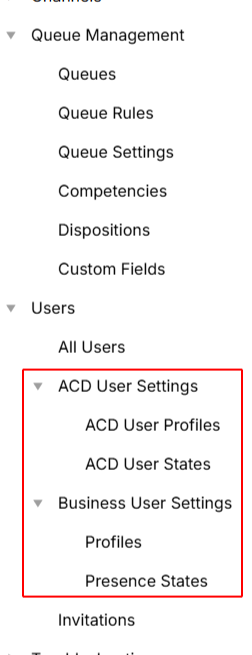
The Administration > Users menu has been reorganized to group related settings and accommodate new Business User settings. (17717)
What's changed
ACD User Settings - Contains ACD User Profiles and ACD User States, previously located under Queue Management.
Business User Settings - Contains the new Profiles and Presence States pages.
All Users and Invitations - Remain directly under Users.
This reorganization provides a clearer distinction between ACD and Business User administration, making related settings easier to locate.
Centralized Security Settings
Manage key security settings from a dedicated tab in General Settings.
A new Security tab in General Settings bringing together two existing settings.
What's changed
Allow MFA Exemptions for Owned Users - Controls whether owned users can be exempted from multi-factor authentication (MFA).
Allow Emailed Report Downloads Without Login - Controls whether authentication is required to download emailed reports.
Both settings have been relocated without changing their existing functionality.
Telephone Number Greeting Visibility
See the greeting assigned to each telephone number directly from the Telephone Numbers grid.
A new Greeting column has been added to the Telephone Numbers grid displays the greeting assigned to each telephone number. The column is visible by default and supports sorting, exporting, and hiding as needed. (17358)
AI Assistant - Enhanced Configuration
Gain greater control over AI Assistant audio, models, providers, and voices.
AI Assistant configuration has been expanded with new background audio controls and more flexibility over the AI services used during customer interactions.
What's changed
Background Audio
Administrators can now independently control the background sounds used during AI Assistant conversations. (15549, 17123, 26.2.3)
Enable Background Office Sounds - Plays subtle office background ambience during the conversation.
Enable Keyboard Sounds - Plays keyboard typing sounds while the AI Assistant is processing a response.
Both options are enabled by default, preserving the existing AI Assistant experience unless an administrator chooses to disable them.
Model and Voice Selection
Administrators now have greater control over the AI models, transcription providers, and voices used by AI Assistants. (17322)
Explicitly select the AI model, speech-to-text provider, and text-to-speech provider and voice.
Configure primary and secondary providers, allowing the secondary provider to be used if the primary provider is unavailable.
Select primary and secondary voices for text-to-speech.
Continue to use automatic selection when specific providers or voices do not need to be configured.
Existing AI Assistants continue to use automatic selection by default, so no configuration changes are required following the release.
Provider and model names use simplified display names, while provider credentials remain masked.
These enhancements provide greater control over how AI Assistants sound and the services used to process their conversations while preserving existing behavior by default.
? See knowledge base article Configuring AI Assistants.
AI Insights - Minimum Talk Time
Control which calls are automatically processed by AI Insights based on talk time.
Administrators can now configure a minimum talk time for Telephone Call and Preview Dialer queues. Calls with a talk time below the configured threshold are excluded from automatic transcription and AI insights processing. (14882)
What's changed
A new Minimum Talk Time setting allows you to set the minimum talk time, in seconds, that a call must reach before it is automatically processed for transcription and AI Insights.
Calls below the configured threshold are not automatically transcribed or processed by AI insights.
The default value is 0, which applies no minimum talk time.
Transcripts and AI Insights can still be generated manually for calls below the threshold, providing Allow On Demand is enabled.
Features that process interactions on demand, including Ask AI and Quality Management Score Assist, remain available for calls below the threshold.
This enhancement allows administrators to exclude shorter calls from automatic AI processing while retaining the option to process them manually when needed.
?See knowledge base article Queue Configuration - Common Queue Settings - AI.
AI Prompts - Testing Workflow
Test AI prompts more efficiently across different interactions.
The Test Prompt workflow has been improved to make it easier for administrators to test AI prompts against multiple interactions without leaving the test interface. (8915)
After running a test, the Test Session ID field now remains visible when its value is cleared, allowing you to enter another Session ID and immediately run another test.
This enhancement makes it quicker to test the same prompt against multiple interactions.
Screen Pops
Display information from external systems directly in Agent Experience and trigger API calls without interrupting agents.
Screen pop functionality has been expanded with a new Handoff screen pop type and enhanced API capabilities, providing greater flexibility for integrating external systems and automating workflows.
What's changed
Handoff Screen Pop
The new Handoff screen pop type allows developers and integration partners to pass information to agents through an API, without building a custom user interface. (17082)
Handoff supports integrations with third-party voice and chat AI assistants, CRM systems, and custom routing flows, allowing agents to receive relevant context when an interaction is routed to them.
Flexible content presentation - Display customer details, conversation summaries, escalation notes, and recommended next steps using labeled fields, formatted summaries, checklists, status tags, and alerts.
No custom UI required - Define the content and its layout through the API without building or maintaining a custom user control.
Dynamic updates - Update existing Handoff content as additional information becomes available.
Screen Pop API Calls
Screen pop configuration now provides additional options for executing API requests and triggering workflows. (16564)
Custom request bodies - Include a custom request body in POST and PUT requests when an API call is configured to run before a screen pop opens.
Background API calls - Trigger API calls using the No Screen Pop type without opening a browser window for the agent.
Custom flowchart methods - Optionally execute a custom flowchart method after an API call is triggered.
Relative API paths - Use relative paths when calling internal APIs.
These enhancements simplify integrations with external systems, allowing agents to receive relevant information while supporting automated workflows that do not require agent interaction.
Channel Custom Concurrency
Simplified channel settings while keeping advanced concurrency controls accessible.
The Custom Concurrency controls have been moved from the top to the bottom of the channel settings form. The Custom toggle and, when enabled, the Concurrency Rule Expression field and Validate Expression button continue to work as before. (10854)
This cosmetic change reduces clutter for most administrators while keeping advanced concurrency configuration readily available when needed.
Call Delivery Timeout Override
Configure individual call delivery timeouts without affecting other agents.
Administrators can now override the default telephone call delivery timeout for individual ACD User Profiles, allowing agents who need additional time to answer incoming calls to have a longer alert duration without changing the timeout for everyone. (11748)
What's changed
A new Override Delivery Timeout checkbox is available under ACD User Profile > Channel Settings > Telephone calls.
When enabled, administrators can specify a custom Delivery Timeout (sec) for the selected ACD User Profile.
When disabled, the profile inherits the global Delivery Timeout (sec).
Administrators can return a profile to the global timeout at any time by disabling Override Delivery Timeout.
This enhancement provides greater flexibility when configuring call delivery for agents with different working environments or network conditions, while maintaining existing timeout behavior for other agents.
? See knowledge base article ACD User Profiles.
Expanded Custom Fields
Capture more information in custom fields.
The maximum length of custom field values has been increased from 50 to 256 characters, allowing administrators to create fields that capture more detailed information.
What’s changed
Custom fields can now be configured with a maximum length of 256 characters.
New custom fields continue to default to 50 characters.
Values up to the configured limit remain searchable, sortable, and available for reporting.
The configured character limit is enforced when agents enter custom field values.
This enhancement provides greater flexibility for capturing detailed information while allowing administrators to control the appropriate field length for each use case.
Salesforce Navigation-Based Logging
Log interactions against the Salesforce record an agent is viewing.
A new Enable logging to currently viewed record option allows completed interactions to be logged against the Salesforce record the agent is viewing when the interaction ends, providing greater flexibility and reducing manual record linking. (16870, 26.2.3)
What's changed
Logging is no longer limited to Lead and Contact records. Interactions can be associated with other Salesforce objects, including (but not limited to) Accounts, Cases, Opportunities and Incidents.
When enabled, agent navigation is tracked and the completed Salesforce Task is associated with the record being viewed when the interaction ends.
The feature is optional, allowing existing Salesforce logging behavior to remain unchanged when it is not enabled or missing (due to out of date Call Center Definition).
To use the feature:
Download the updated Call Center Definition from the Admin Portal.
Set Enable logging to currently viewed record to true.
Import the new Call Center Definition into Salesforce to replace your existing Call Center Definition.
This enhancement reduces manual effort for agents and helps ensure interactions are logged against the most relevant Salesforce record.
?See knowledge base article Salesforce Integration.
Microsoft Dynamics Custom Parameters
Customize how the Dynamics integration behaves and what interaction data it writes back to CRM.
The Microsoft Dynamics integration now supports expanded Custom Parameters, giving administrators greater control over contact matching, record selection, Phone Call activity creation, and data mapping. (16482, 16972, 26.2.4)
What's changed
Custom Parameters can now be used to:
Control how inbound telephone numbers are matched against Contacts and Accounts.
Allow agents to search for and select a different Contact or Account from the embedded Agent Experience.
Control whether new Contacts can be created when no match is found.
Require notes or dispositions before a Phone Call activity is created.
Control whether the currently selected Contact is retained while an agent searches.
Map interaction data such as Session ID, queue, Caller ID, notes, dispositions, direction, and duration to custom Phone Call activity fields.
Map values captured in Agent Experience custom fields to Dynamics custom fields.
This gives administrators significantly more flexibility to align Dynamics behavior and CRM data capture with their own operational processes.
?See knowledge base article Dynamics 365 Integration.
In-Queue Timeout Actions for Voicemail Queues
Automatically take action when a voicemail remains in queue for too long.
Administrators can now configure timeout actions for Voicemail queues, allowing the system to automatically change routing or trigger another action after a voicemail has waited in queue for a specified amount of time. (17291)
What's changed
All existing settings previously available directly under Voicemail Settings have moved to Voicemail Settings > Configuration. The settings and their existing configuration remain unchanged.
A new Voicemail Settings > In Queue Options tab provides settings for managing voicemails that remain in queue beyond a configured timeout.
Administrators can enable a timeout, specify how long a voicemail can remain in queue, and select one of the following actions:
Change Queue Properties - Change properties such as priority, required competencies or languages, or move the voicemail to another queue.
Custom Flowchart - Run a custom flowchart when the timeout is reached.
Forward to Email - Forward the voicemail by email, including a link to the recording and transcript.
This enhancement gives administrators greater control over how voicemails are handled when they remain in queue and provides a more consistent configuration experience across channels.
Contact Manager
Do Not Contact
Strengthen Do Not Contact enforcement for email and simplify the management of large DNC lists.
Do Not Contact (DNC) functionality has been enhanced with email enforcement and background CSV imports, helping prevent outbound emails to restricted addresses while making it easier for administrators to manage large DNC lists.
What's changed
Email DNC Enforcement
DNC enforcement now applies to outbound emails, preventing agents from sending messages to email addresses that match applicable DNC entries. (15211)
DNC validation is performed when agents send a new email or reply to an existing email interaction.
All recipients are checked, including To, CC, and BCC addresses.
Applicable Global and Queue-specific DNC entries are checked before the email is sent.
If any recipient matches a DNC entry, the email is blocked and the agent is notified.
Blocked email attempts do not trigger Wrap-Up or incorrectly indicate that the email was sent.
Background DNC Imports and Progress Tracking
Administrators can now import large DNC lists in the background without interrupting other tasks in the Admin Portal. (1231)
Background imports - CSV imports continue processing when administrators close the import window or navigate elsewhere in the Admin Portal.
Live progress tracking - View the percentage completed, rows processed, and estimated time remaining. A toolbar button provides access to import progress after the window is closed.
Import recovery - Refreshing the page automatically reconnects to any active import.
Import summary - When an import finishes, a notification displays the number of new entries added and duplicates already present in the DNC list.
Together, these enhancements improve DNC enforcement across communication channels and make large DNC lists easier to maintain.
Dialer
Preview Dialer Countdown Control
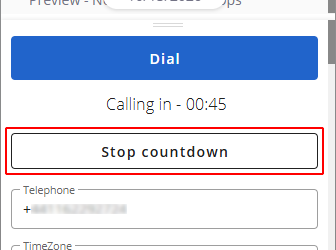 Give agents control over when Preview Dialer calls are placed.
A new Allow Stop Countdown setting in ACD User Profiles allows administrators to give agents the option to stop the automatic preview countdown and initiate calls when they are ready. (17576)
What's changed
New profile setting - Administrators can enable Allow Stop Countdown. Once saved, the setting takes effect from the agent's next preview contact.
Stop Countdown button - When enabled, a Stop Countdown button appears in the
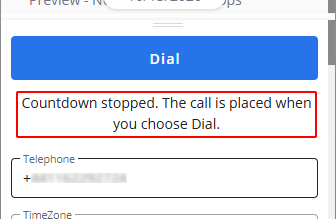 Agent Experience during the preview phase of a dialer contact.
Manual dialing - Selecting Stop Countdown stops the automatic countdown. The call is not placed until the agent clicks Dial.
Keyboard accessibility - The Stop Countdown button can be accessed and activated using the keyboard.
This enhancement gives agents who need additional time to review contact information greater control over when calls are placed, supporting WCAG 2.2 Success Criterion 2.2.1 (Timing Adjustable).
?See knowledge base article ACD User Profiles.
Dynamic Messages for Agentless Voice Campaigns
Create personalized automated voice messages using data from your dialer lists.
Agentless voice campaigns can now generate dynamic messages from calling-list fields and play them to customers using text-to-speech (TTS). This allows a single campaign to deliver personalized information to each customer, such as appointment reminders, delivery updates, or service notifications. (16493)
For example, if Name and Apt time are fields in the dialer list, the opening message could be configured as:
“This is a reminder for {{Name}} that you have an appointment at {{Apt time}}.”
When each call is answered, the values from that contact's dialer-list record are inserted into the message and read to the customer using TTS.
Alternatively, the complete message can be stored in a single calling-list field. This allows each record to contain a different message, which can then be played to the customer using TTS.
What's changed
Enable Play Opening Message to configure a TTS message that plays when the contact answers.
Combine standard text with dialer list fields using {{column_name}} variables to dynamically insert information such as names, dates, and times.
Choose what happens after the opening message:
Hang Up - Ends the call when the message finishes.
Continue to Greeting - Continues to the configured greeting, where the contact can follow any option from the associated menu.
This enhancement allows agentless campaigns to deliver personalized automated messages while providing control over what happens after the message has been played.
?See knowledge base article Agentless Campaigns.
Feedback
Evaluation Form Testing and Deletion
Test and refine Quality Management evaluation forms before publishing, and delete unused forms directly from the Admin Portal.
Managers can now test Quality Management (QM) evaluation forms using the normal scoring process before publishing them, and delete forms that have not been used for actual evaluations. These enhancements make it easier to refine evaluation forms and remove obsolete or unwanted forms while protecting existing evaluation data. (17329)
What’s changed
New Evaluation Form Testing Workflow
A new Testing status allows managers to test evaluation forms using the normal scoring process before making them available for production use.
Start testing - A new
 Test icon is available for forms in New status, allowing them to be moved into the new Testing status.
Score test evaluations - Forms in Testing status can be selected for scoring in the same way as published forms by both human and Score Assist.
Refine before publishing - Forms remain editable while in Testing and can be published or returned to New using
 Return to Draft for further changes.
Keep test evaluations separate - Evaluations completed while a form is in Testing are not shared with agents and do not count as actual use. Forms that have only been tested can therefore still be deleted.
Preserve evaluation history - If a test evaluation is reopened and saved after its form has been published, it becomes an actual evaluation and counts as use, preventing the form from being deleted.
Identify deleted test forms - Test evaluations associated with deleted forms remain accessible and display a message explaining that the evaluation was a test and its form has been deleted.
Self-Service Form Deletion
Managers can delete unused evaluation forms in New, Testing, Published, or Deactivated status directly from the Manage Forms grid.
Once a form has been used for an actual evaluation, it can no longer be deleted, protecting historical evaluation records.
To delete an unused form, select its
 Delete icon and confirm the deletion.
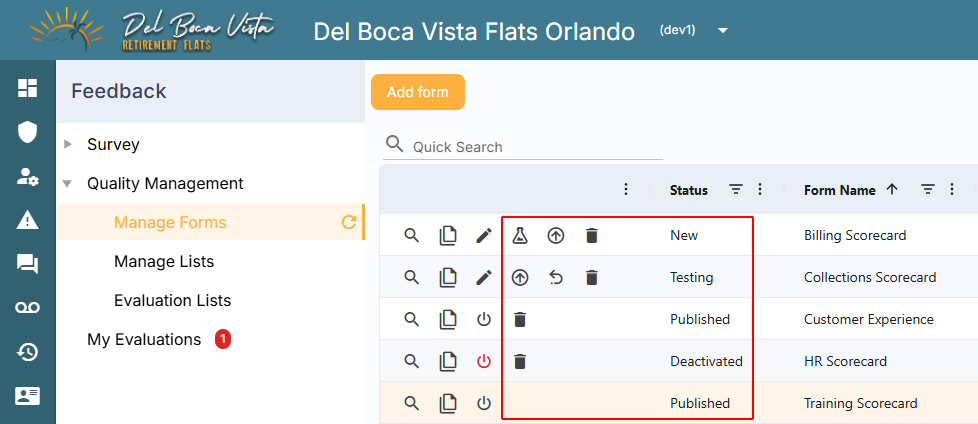
In the example above, the first four forms can be deleted because they have not been used for actual evaluations. The fifth form cannot be deleted because it has already been used to evaluate an interaction.
These enhancements allow administrators to test, refine, and manage evaluation forms independently while protecting existing evaluation records.
Modules
Business User
As we prepare to retire legacy PBX, the Business User module now serves as a complete, future-proof replacement.
Contact center provisioning has been enhanced to automatically include the required dependencies and assign an extension to the initial user when creating a contact center with the Business User module. (17056, 17057)
Embedded Cross Center Services
Allows this contact center to securely access and display real-time queue and agent data shared by other contact centers. Supports centralized monitoring and supervision across approved remote queues. Requires Embedded Cross Center Source on each contact center sharing data. (16209)
Embedded Cross Center Source
Allows this contact center to securely share real-time queue and agent data with other contact centers. Provides control over which contact centers and queues are authorized for cross-center monitoring and supervision. Requires Embedded Cross Center Services on the contact center accessing the shared data. (16209)
ServerSide Troubleshooting
Restrict access to advanced server-side troubleshooting tools.
The Server Side Troubleshooting module that grants access to manage Active HSMs is now restricted to System-level installation, helping protect production environments from unintended changes that could affect service availability. (17115, 26.2.3)
Existing customer installations are unaffected. The module is excluded from new customer templates by default.
Verint WFM Enterprise
Integration to Verint Workforce Management Enterprise. This will send user walltime data and aggregated contact data to Verint to enable forecasting and scheduling. Requires a Verint WFM Enterprise account to integrate. (17432, 26.2.4)
Reporting
Ask AI Interaction Selection
Keep interaction selections consistent while using Ask AI in detail reports.
Ask AI now locks selected interactions while its panel is open, preventing users from changing the records being analyzed. Closing Ask AI unlocks the selected rows, allowing users to choose a different set of interactions for their next analysis. (17520)
Recording Playback & Deletion
Manage voice and screen recordings independently with greater control over recording access.
Deleting files from the Recording tab in Interaction Details within detail reports has been enhanced to give more precise control over voice and screen recordings. (13470, 14904)
What's changed
Voice and screen recordings can now be deleted independently. Deleting one recording type does not automatically remove the other.
For customers using Bring Your Own Storage and recordings have been offloaded to external storage:
If a recording is deleted from system storage but remains in external storage, the media player continues to play the externally stored recording without local download.
References to externally stored recordings can be removed from the portal without deleting the file from external storage.
Tooltips clarify the delete action based on where the recording is stored :
System storage: Delete
External storage: Remove the file reference; the file will remain in external storage.
To improve recording security, browser right-click context menu downloads have been disabled for audio and screen recordings. Recordings can no longer be downloaded locally using the browser's context menu.
These enhancements provide greater control over recording management and access while helping prevent unintended loss or local download of recordings.
Enhanced Security for Emailed Report Downloads
Control whether recipients must log in to download reports from email links.
Emailed report downloads now require authentication by default, helping protect report data if an email or download link is forwarded to someone without access. (17380)
What's changed
Recipients must log in before downloading a report from a link in a scheduled or ad-hoc report email.
A new Allow Emailed Report Downloads Without Login setting allows administrators to remove this requirement when reports need to be shared with recipients who do not have a contact center login.
When enabled, recipients can download reports directly from emailed links without logging in.
Report downloads are recorded in the Change Log. When authentication is required, the log identifies the user who authenticated to download the report by both name and User ID. When downloads without login are allowed, the download is recorded with name NA and without User ID because the recipient is not authenticated.
This enhancement provides secure-by-default access to emailed reports while allowing administrators to enable unauthenticated downloads when required.
?See knowledge base article Allow Emailed Report Downloads Without Login.
Metrics
Introduced new metrics and refined existing ones to provide deeper insights.
Legend: [D - Source] available in detail reports within the named source. [S] available in summary reports. [F] filterable.
New:
Denied Reason [D - User States, S & F] Shows whether the agent rejected or missed the interaction. (13732)
Denied Session ID [D - User States, S & F] Shows the Session ID of the interaction the agent missed or rejected. (13732)
Priority [D - Contacts (Interactions), S & F] Shows the cumulative base priority applied when a contact entered a queue. The value does not increase with time spent in queue. (17117)
Timecard State [D - User States & User States and Audits, S & F] Shows the custom ACD User State associated with timecard activity. (18169)
System Administration
Access Groups
Extend Access Group control to additional user interface elements
Access Groups can now be used to hide additional features and controls, giving administrators finer control over what users can see and access based on their role. (16160, 16964 26.2.3)
What's changed
You can now control visibility of the following elements.
Menus
Dashboards
Feedback > My Evaluations
Feedback > Survey > Manage Surveys
Feedback > Quality Management > Manage Forms
Feedback > Quality Management > Manage Lists
Feedback > Quality Management > Evaluation Lists
These additions make it easier to tailor the user experience, simplify the interface for different user groups, and restrict access to features where appropriate.
?See knowledge base article Access Groups.
Time Zone Aware Scheduled Tasks
Keep recurring tasks aligned with local time throughout the year.
Recurring tasks can now be assigned a time zone, allowing administrators to schedule tasks according to regional business hours without having to manually adjust schedules when daylight saving time changes. (16966, 26.2.3)
What's changed
A Time Zone selector has been added to recurring task configuration.
The time zone defaults to (UTC) Coordinated Universal Time, preserving existing scheduling behavior unless changed.
When a time zone is selected, the scheduled time is interpreted in that local time zone, including any daylight saving time adjustment, before being converted to UTC for scheduling.
For example, a task configured to run at 9:00 AM in a time zone that observes daylight saving time will continue to run at 9:00 AM local time throughout the year, even as its corresponding UTC time changes.
This enhancement simplifies scheduling across global operations and helps ensure recurring tasks continue to run at the intended local time throughout the year.
Cross-Center Callback Transfers
Transfer queued callbacks between ICCR-enabled contact centers while preserving callback information.
Inter-Contact-Center Routing (ICCR) now supports transferring queued callbacks between contact centers using the Apps/Callback/SubmitQueuedCallback API endpoint. Callback transfers are not available through the user interface. (17313)
What's changed
Queued callbacks can be transferred from one ICCR-enabled contact center to another using the Apps/Callback/SubmitQueuedCallback API endpoint.
The request identifies the queued callback to transfer, its source queue, and the destination contact center and queue.
Transferred callbacks retain their original queue timestamp, caller information, routing history, custom user data, and other callback context.
The source contact center retains the callback until the destination contact center accepts the transfer.
The destination validates that the callback can be accepted before creating it in the target queue.
Source and destination callback records use a shared correlation ID to support tracking and troubleshooting.
The Apps/Callback/SubmitQueuedCallback endpoint accepts the following payload:
{
"SourceSessionId": "<queued-callback-session-id>",
"SourceQueue": "<source-queue>",
"DestinationBaseUrl": "https://<destination-api-host>",
"DestinationApiKey": "<destination-api-key>",
"DestinationQueue": "<destination-callback-queue>"
}
This enhancement extends ICCR to support API-based transfer of queued callbacks between contact centers while preserving their existing routing context and queue position.
Scheduled Maintenance for Band Moves
Control Global ACD Router availability during band moves.
The band move workflow has been updated with a clearer Scheduled Maintenance option, giving system administrators more explicit control over whether the Global ACD Router remains active during a move. (16867)
What's changed
A Scheduled Maintenance checkbox replaces the previous Temporarily Disable Global ACD Router checkbox.
When Scheduled Maintenance is enabled, the Global ACD Router remains active during the band move, ensuring any existing configuration for transparent band movement remains effective throughout the switch.
When Scheduled Maintenance is disabled, a new Show Advanced Settings option allows you to configure Revert to Default Settings After, defining how long the temporary settings remain in effect before the Global ACD Router returns to its default settings.
Enable Scheduled Maintenance for planned maintenance. Leave it disabled for emergency band moves.
The replacement settings are available when switching a company's band from both Reseller and the System accounts.
This change makes the expected routing behavior during a band move clearer and reduces the risk of selecting the wrong option.
Database Provider Integration (aka BYODB)
Configure dedicated database schemas, monitor processing activity, and access additional fields through Database Provider Integration.
Database Provider Integration (BYODB) has been enhanced with configurable database schemas, optional run audit logging, and additional database fields, providing greater control and visibility over data processing.
What's changed
Configurable Database Schemas
A new optional Schema Name property in the Database Provider configuration allows administrators to specify which database schema BYODB uses to create, update, and access its tables. (17851)
PostgreSQL and SQL Server - Specify a dedicated schema instead of using the database default. The configured schema name preserves its letter case.
Existing configurations - Leave Schema Name blank to continue using the default schema: public for PostgreSQL or dbo for SQL Server.
MySQL - The Schema Name setting is not applicable. MySQL continues to use the configured database.
This enhancement supports environments that require BYODB data to be stored in a dedicated schema, without affecting existing configurations.
Run Audit Logging
New optional run audit logging allows administrators to monitor BYODB processing activity and investigate issues. (17879)
When enabled, each run generates a JSON file containing:
Start and finish times, including total processing time.
Record-processing counts and timings for each owner and table.
Overall and table-level success indicators.
Failure messages to help investigate processing issues.
Record counts represent attempts to insert or update records, rather than separate totals for new and updated records.
To enable logging, select Write Run Audit to Mass Storage in the Database Provider settings, choose an Audit Storage Provider from the mass storage providers already attached, and specify the Audit Storage Path. Files are organized into year and month folders.
If an audit file cannot be written, the error is logged without interrupting data processing.
Additional Database Fields
BYODB has also been extended to include the following fields. (14862, 17097, 26.2.4)
These additional fields expand the data available through BYODB for reporting and integration purposes.
? See knowledge base article Database Provider Integration (aka BYODB).
Miscellaneous.
Agent No-Answer Timeout Priority
Preserve accumulated call priority when an agent does not answer.
Contacts that return to the queue after an agent's answer timeout now retain their accumulated priority, preventing them from losing the priority they earned while waiting. (17582)
What's changed
Retained priority - Contacts retain their full accumulated priority, including their base queue priority and any additional priority earned through waiting time.
Preserved queue entry time - The original queue entry time is maintained when the call returns to the queue.
Improved visibility - Administrators can view the retained priority in ACD dashboard cards and queue monitoring views.
This change applies only to calls returned to the queue following an agent no-answer timeout. Dashboard requeues, Queue Rules, and in-queue timeout requeues continue to behave as before.
Reset Custom Notification Sounds
Easily return custom notification sounds to their configured defaults.
Users can now clear a custom notification sound from phone settings, allowing the applicable default sound to be used instead.
What's changed
A blank option is now available when selecting sounds for alerts, including incoming calls, digital interactions, new messages, and inactivity alerts.
Selecting the blank option removes the custom sound selection.
Once cleared, the alert uses the default sound configured at the ACD User Profile or Channel level, as applicable.
Improved Character Handling in Call Detail Records
Keep Call Detail Records accurate and readable when processing international characters.
UTF-8 character handling has been improved within the telephony platform to prevent invalid characters from causing garbled or unreadable text in Call Detail Records (CDRs). Valid characters, including accented and regional characters, are preserved, while invalid characters are identified and replaced during processing. (16945, 26.2.3)
This enhancement improves data integrity and provides more reliable, readable call data for reporting and troubleshooting.
Enhanced Fax Processing
Improve the reliability and efficiency of inbound and outbound fax processing.
We’ve updated the underlying fax conversion engine to improve the processing of fax documents, particularly larger and more complex files. (16476)
What's changed
Inbound and outbound faxes now use an updated document conversion engine.
The new conversion process uses fewer system resources when converting fax images to PDF.
Improved memory management helps reduce processing issues with large or multi-page faxes.
No configuration is required. The updated conversion process is applied automatically.